
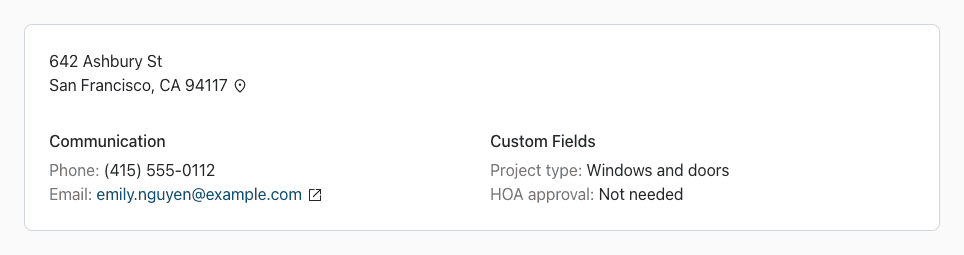
Custom fields keep details about a customer that the standard address, phone and preference fields don't cover, like a gate code or the type of project. You create the fields once, and every customer form shows them.
Create a Custom Field
Admin access required.
- Click your profile icon at the top right and choose Settings.
- Under Information, click Custom Fields.
- Enter the name of the field in Custom name (for example "Gate code") and click Add.
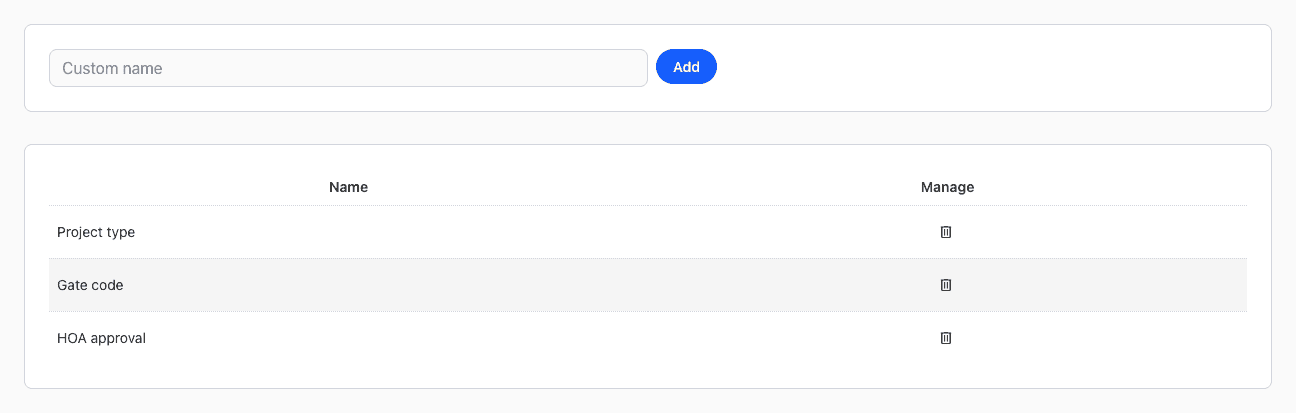
To rename a field, click its name in the list. To delete one, click the trash icon next to it.
Fill In a Custom Field
- Add a customer (Customers > Add Customer), or open one and click the pencil icon next to their name.
- Fill in the fields under Custom Fields.
- Click Add customer or Update customer.
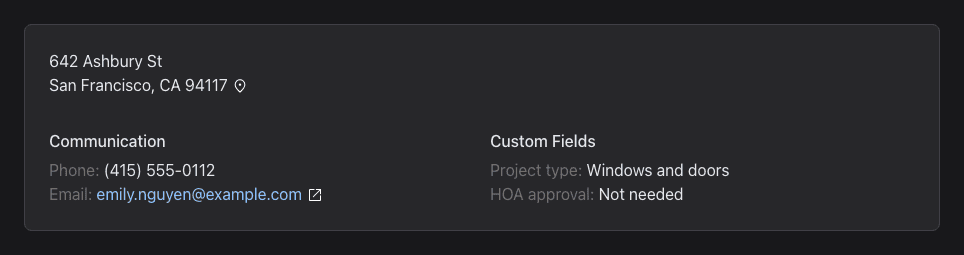
The fields with a value show on the customer's page and at the top of each of their orders. Empty fields are hidden.