
User groups decide what each person can see and do. You create a group, like Sales or Installers, choose the pages and actions it allows, and put users in it. A user in several groups gets everything those groups allow.
Create a Group
Admin access required.
- Click your profile icon at the top right and choose Settings.
- Under User Management, click Groups.
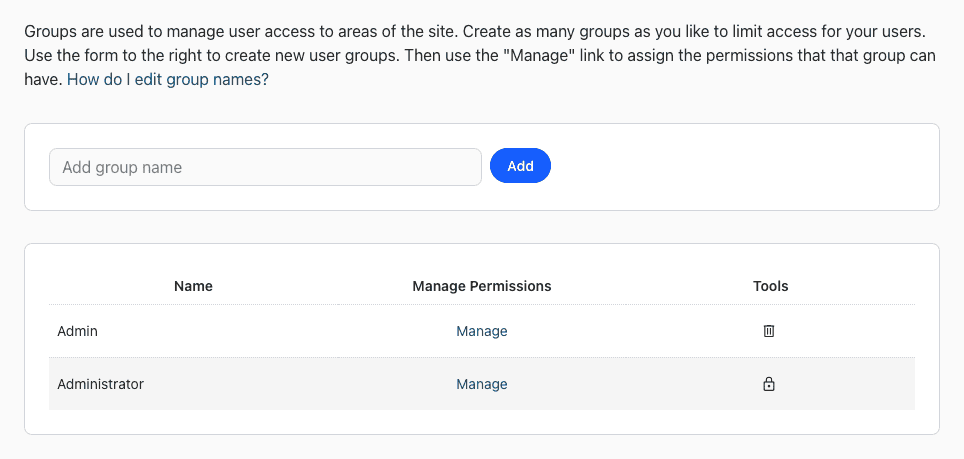
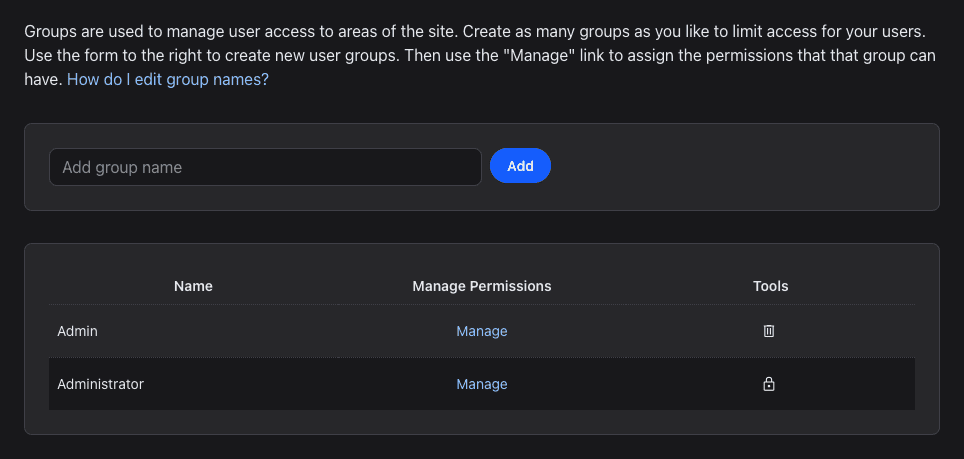
- Enter a name in Add group name and click Add.
Choose What a Group Can Do
- On the Groups page, click Manage next to the group.
- Check the pages and actions the group needs. Each one has a short description, for example "Manage payments placed for an order." The checkbox at the top checks or clears them all.
- Click Save.
Users see the change the next time they log in.
Put Users in a Group
- Go to Settings > Users and click the pencil icon next to the user.
- Under Permissions, select the groups in User Group. Hold ⌘ (Ctrl on Windows) to pick more than one.
- Click Update.
Rename or Delete a Group
Click the group's name to rename it, or the trash icon to delete it. Groups with a lock icon come with every account and can't be changed or deleted.
See also How do I add or remove users?