
Each person in your company gets their own login, so you can see who did what and control what each person can see. You add, change and remove users on the Users page (admin access required).
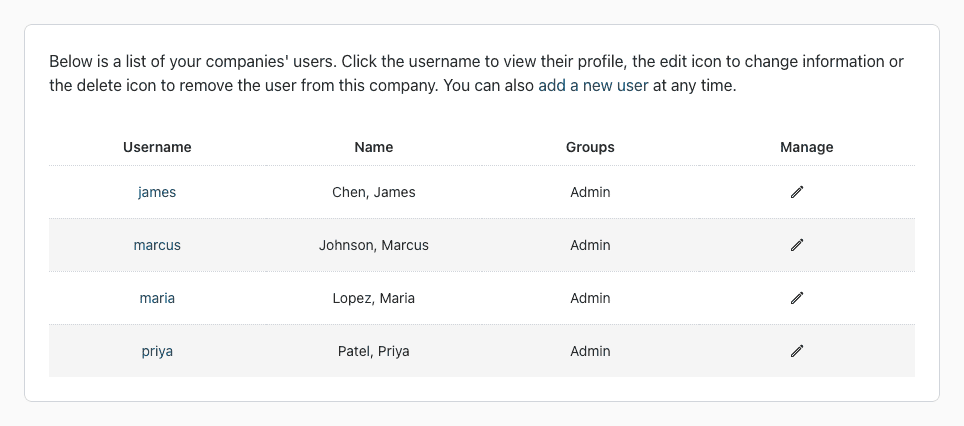
Add a User
- Click your profile icon at the top right and choose Settings.
- Under User Management, click Users, then add a new user.
- Enter a Username (4 to 15 characters), a Password (6 to 10 characters), and the user's First Name and Last Name.
- Under Permissions, pick one or more groups in User Group. The groups decide which pages the user can open.
- Click Add.
Give the new user their company name, username and password to log in. Your plan sets how many users you can have: when you reach it, the Users page asks you to upgrade your plan.
Change a User
Click the pencil icon next to the user, change their details, groups or password, and click Update. Leave the password fields blank to keep the current password.
Remove a User
- Turn off their access: edit the user and set Active to No. They can't log in anymore, and their name stays on their orders, notes and appointments.
- Delete the user: click the trash icon next to them and confirm. The trash icon only shows when your group is allowed to delete users.
Every user counts toward your plan, including inactive ones. See also What are user groups and how do I use them?