
An order is one job for a customer, from the first call to the final payment. For a remodeling company it might be a new kitchen; for a freelancer, one project for a client. Each order keeps everything about that job together.

Add an Order
- Go to Orders > Add Order.
- Search for the customer by name and click add next to them, then OK. For a new customer, click add a new customer and fill in the form instead.
You can also add an order from the customer's page. See Can a customer have multiple orders?
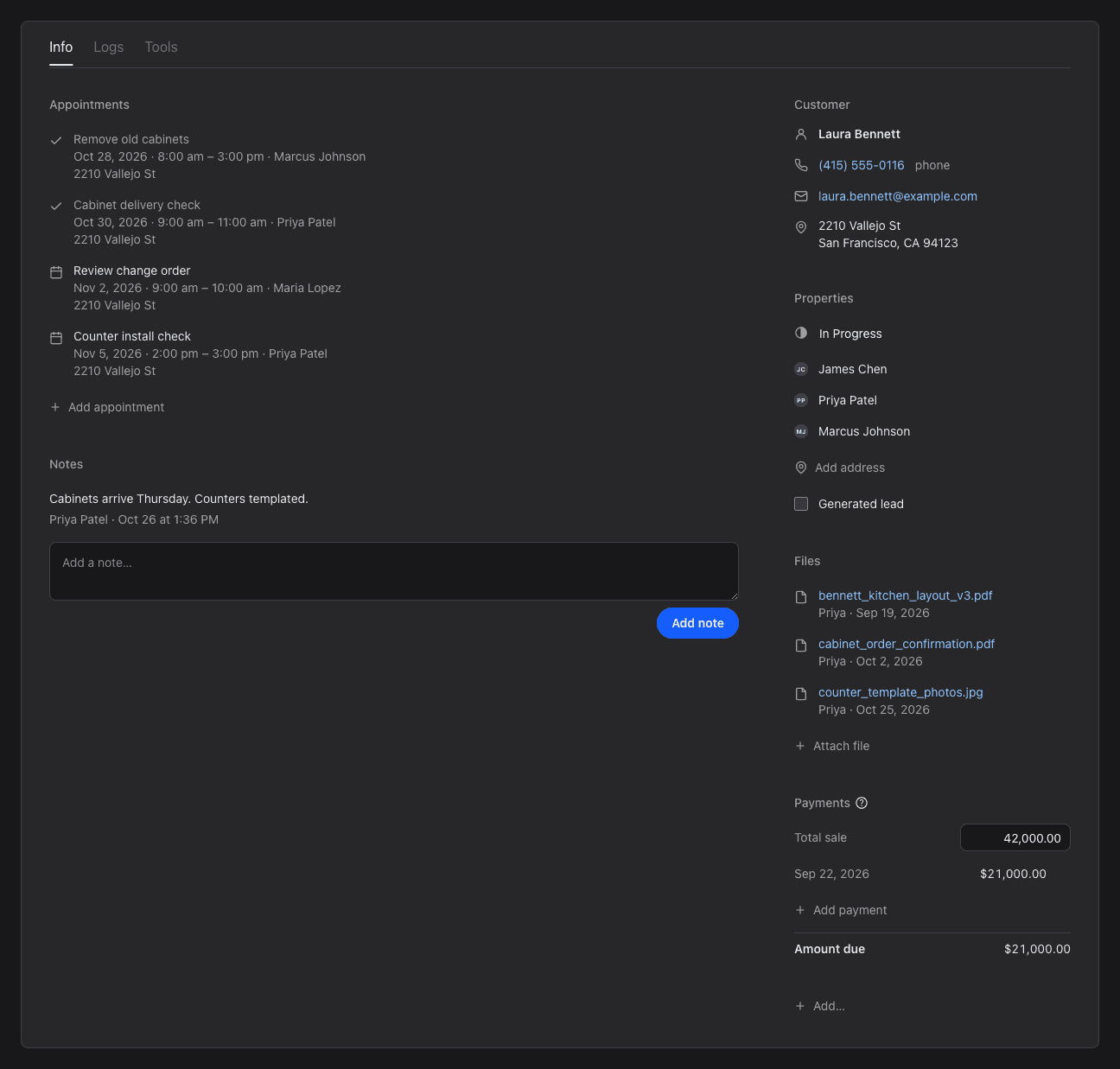
What's in an Order
Everything about the order is on one page, on the Info tab:
| Part | What it's for |
|---|---|
| Customer | The customer's name, phones and email, and a link to their notes. |
| Properties | The status, the users working on the order, the job address and whether it came from a lead. |
| Appointments | The order's appointments. Add one here or in the Scheduler. |
| Notes | Notes about the job. |
| Files | Plans, photos, contracts and other documents. |
| Payments, Invoices, Service calls | The total sale and payments, the materials and labor used, and service calls after the job. They show when the order has them; add them with Add…. |
Two more tabs: Logs has a history of the changes to the order, and Tools prints the order, gets directions, writes a thank you letter and more.
Use the parts you need and skip the rest: CustomerTrackr works for a one-visit job as well as a months-long project. What you see depends on your access.
Find an Order
Type an order number or customer name in the search box at the top of any page, or go to Orders > View Orders to filter the list by status, date or user.