
User associations connect your employees to the orders they work on, like the salesperson who sold the job and the installers who did it. It shows who is responsible for each job and counts their sales in the reports.
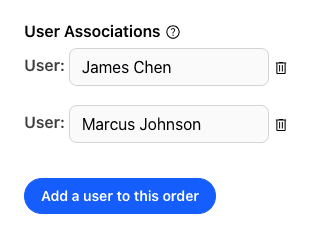
Add a User to an Order
- Open the order. The users are under Properties, below the status.
- Click Assign user, or the name of a user already on the order.
- Check the users to add. Each one is saved right away. Type a name in Assign to… to find a user in a long list.
To remove a user, uncheck them in the same menu, or point at their name and click the trash icon. Click Undo in the message to take a change back.
What Associations Are Used For
- Sales: Reports > Sales Stats can show the orders and total sales of one user.
- Commissions: pick a user in Reports > Order Payments to see the payments of their orders and the Amount Owed to User. The rate is the Sales payment percentage on the Settings > Application tab.
- Profiles: a user's profile lists their orders and their sales by status.
- Reminders: order reminders show for the users on the order. See How do order reminders work?