
The Files of an order keep the documents for the job, like plans, photos and contracts, so your whole team can open them. You can add files by dragging them onto the page, and download them with a click.
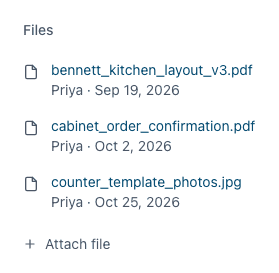
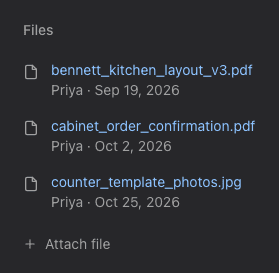
Add Files
- Open the order. Files is on the right side, under Properties.
- Drag one or more files anywhere onto the order and drop them when it says Drop to attach, or click Attach file to choose them.
Each file uploads right away and appears in the list with the date and who uploaded it. Files can be up to 5MB: Word, Excel, PowerPoint, PDF, text files, images and job files.
Download a File
Click the file's name. Depending on your browser and the file type, it opens in a new tab or downloads. To always save it, right-click the name and choose Save Link As (or Download Linked File in Safari).
Delete a File
Point at the file and click the trash icon at the end of its row. Click Undo in the message to keep it.
Don't see Files on the order? Your user group needs access to order files: ask your admin.