
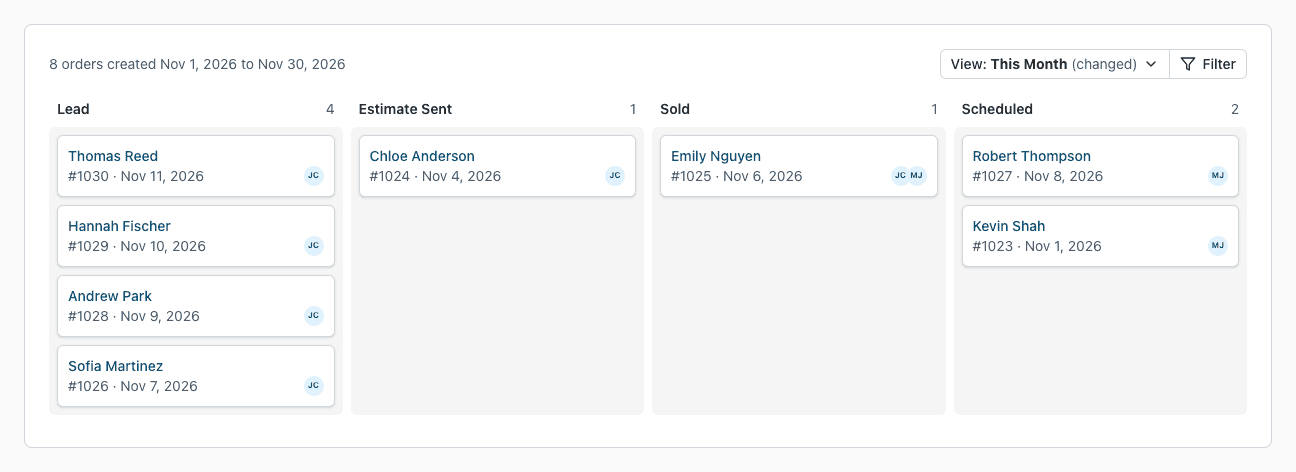
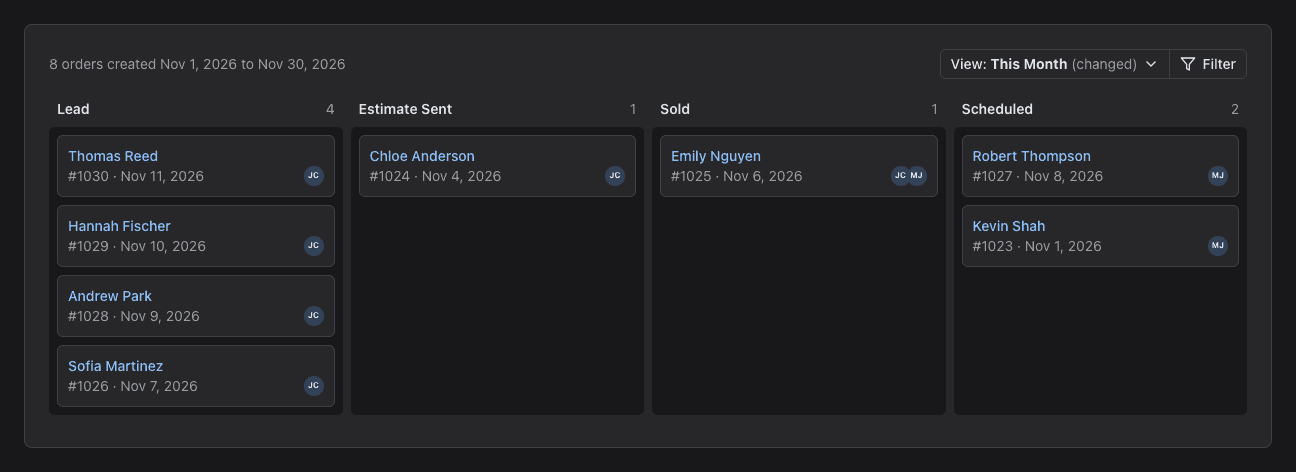
The Order Management board shows all your orders on one screen. Each status is a column and each order is a card. Drag a card to change the status of an order, or filter the board to see only the work you need.
Open the Board
Order List access required.
- Click Orders in the menu, then Order Management.
- The Control Panel also shows the board under Order Management. Click Open full page to use it at full size. The Control Panel board has the same filter and views.
- On a phone, the board is a short table. It shows the number of orders in each status. Click a status to open the list of its orders.
Read a Card
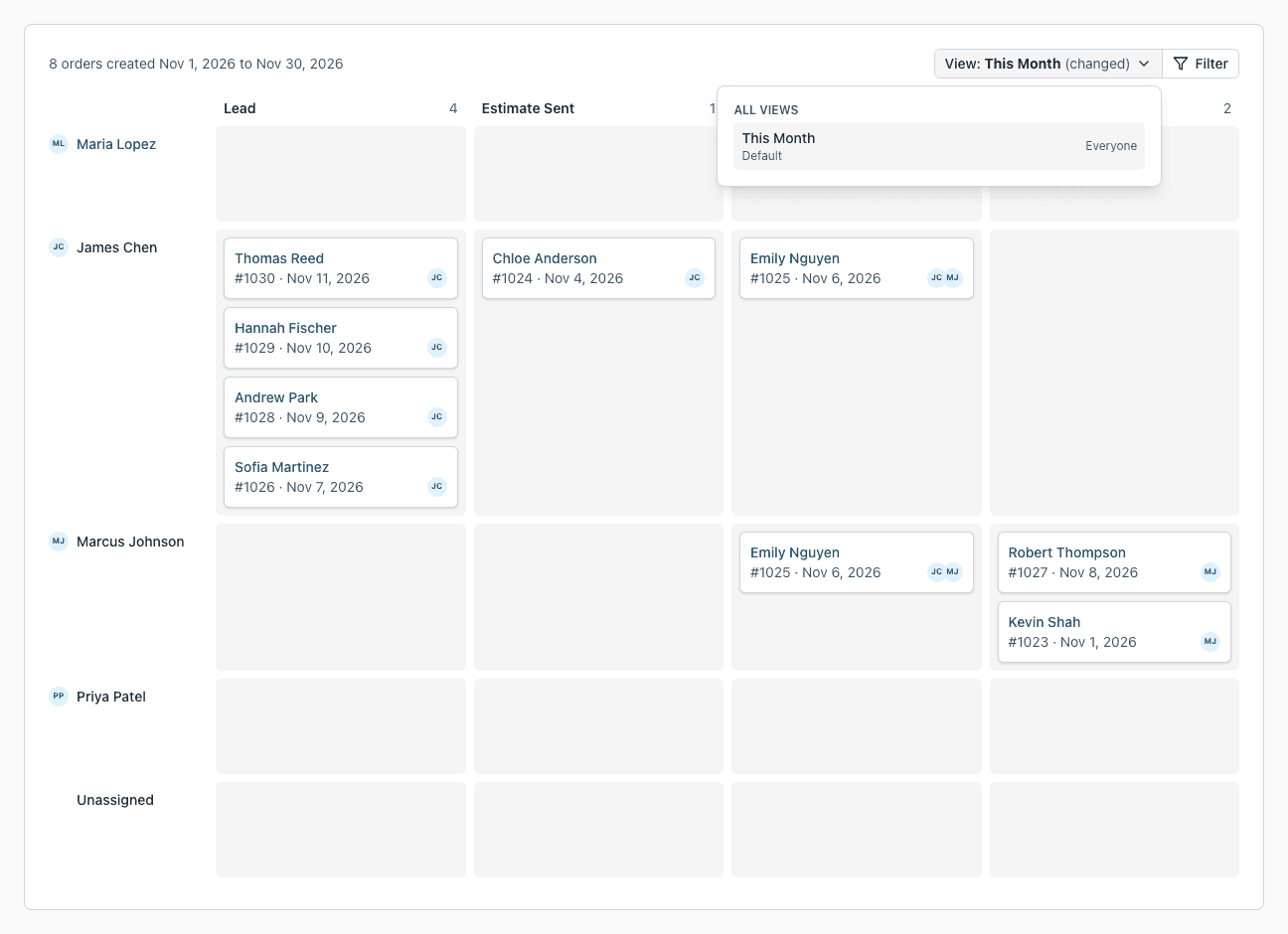
A card shows the name of the customer, the order number, the date the order was created, and the users on the order. A card shows up to three users.
- Click the customer name to open the order.
- Rest the pointer on a card for two seconds to see a preview of the order.
- The number at the top of a column is the number of orders in that status.
Change the Status of an Order
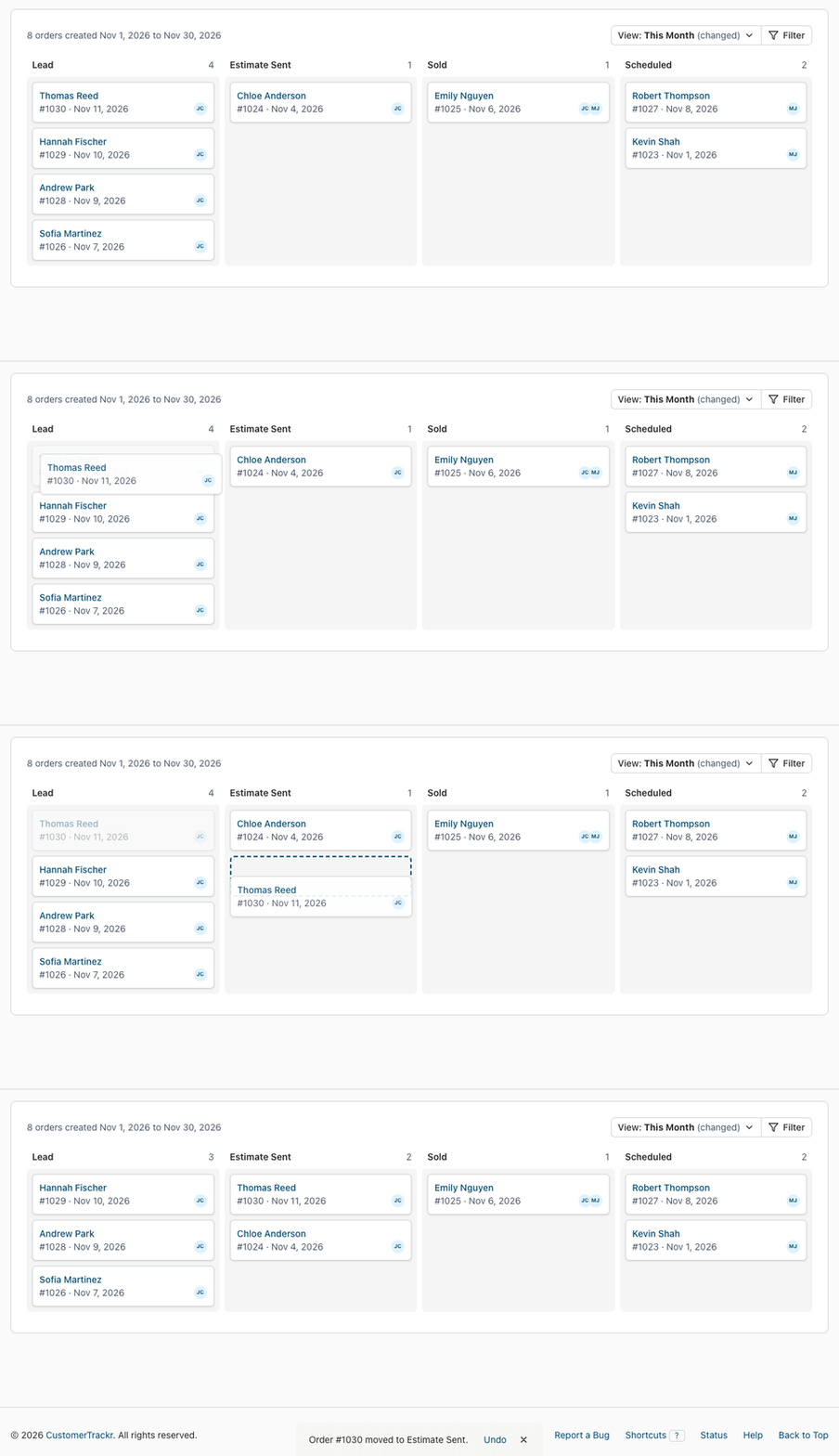
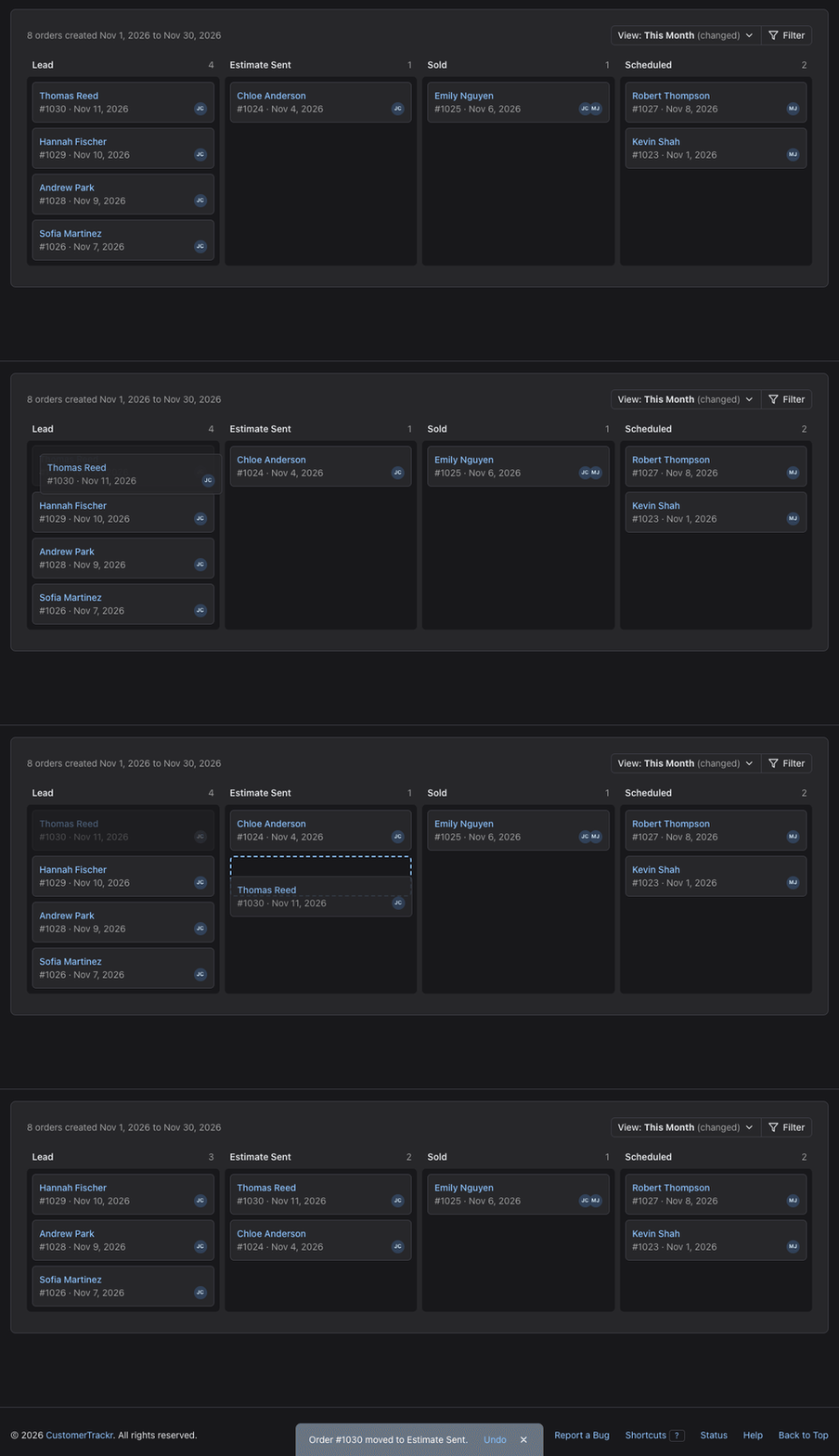
- Press on a card and drag it to another column.
- Release the card. The order has the new status right away.
- To take the change back, click Undo in the message. You can also press Esc while you drag to cancel the move.
The No status column holds orders that have no status. Drag a card out of it to give the order a status.
Group by User
Group the board to see the work of each user.
- Click Filter.
- Set Group by to User.
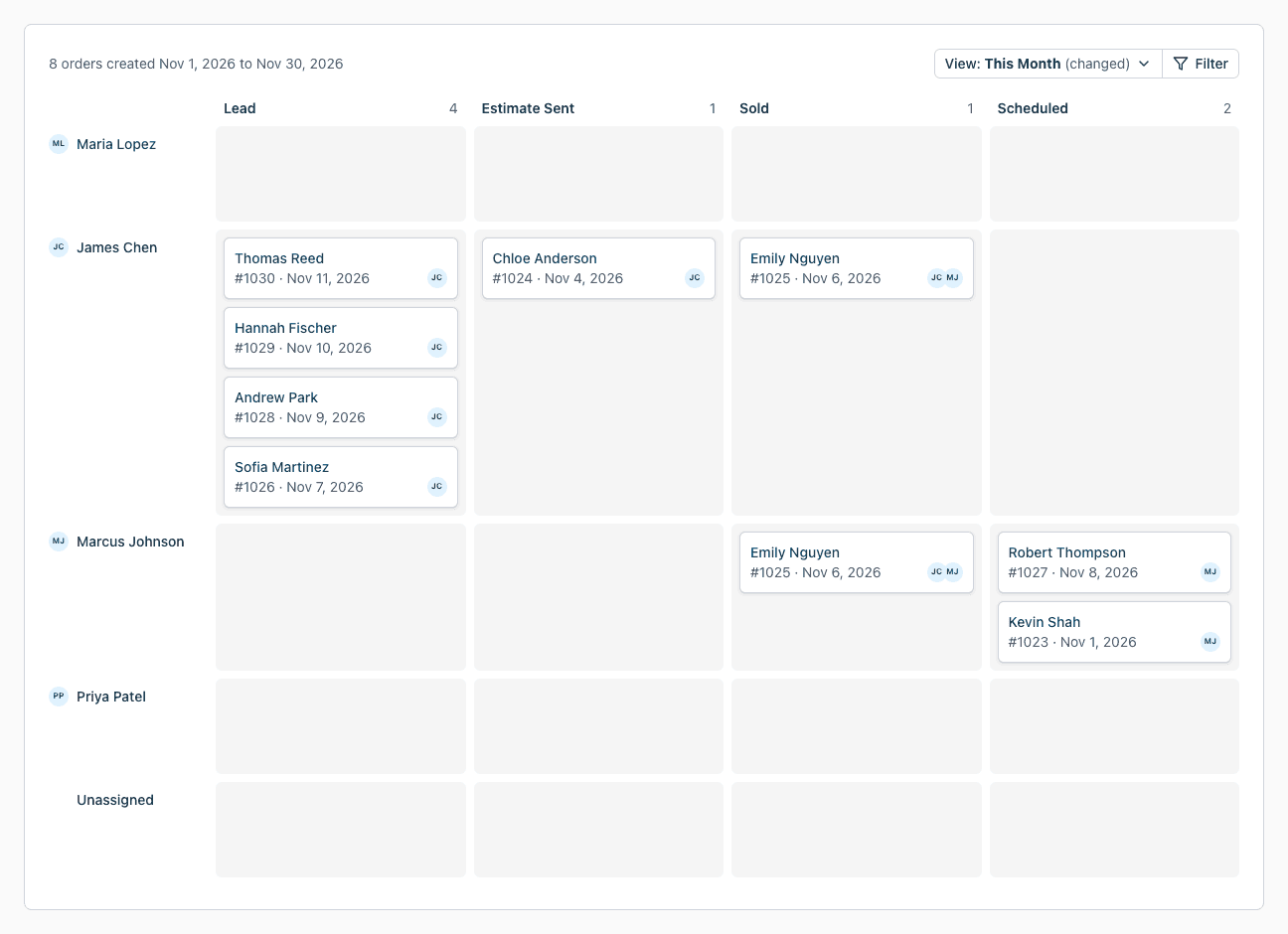
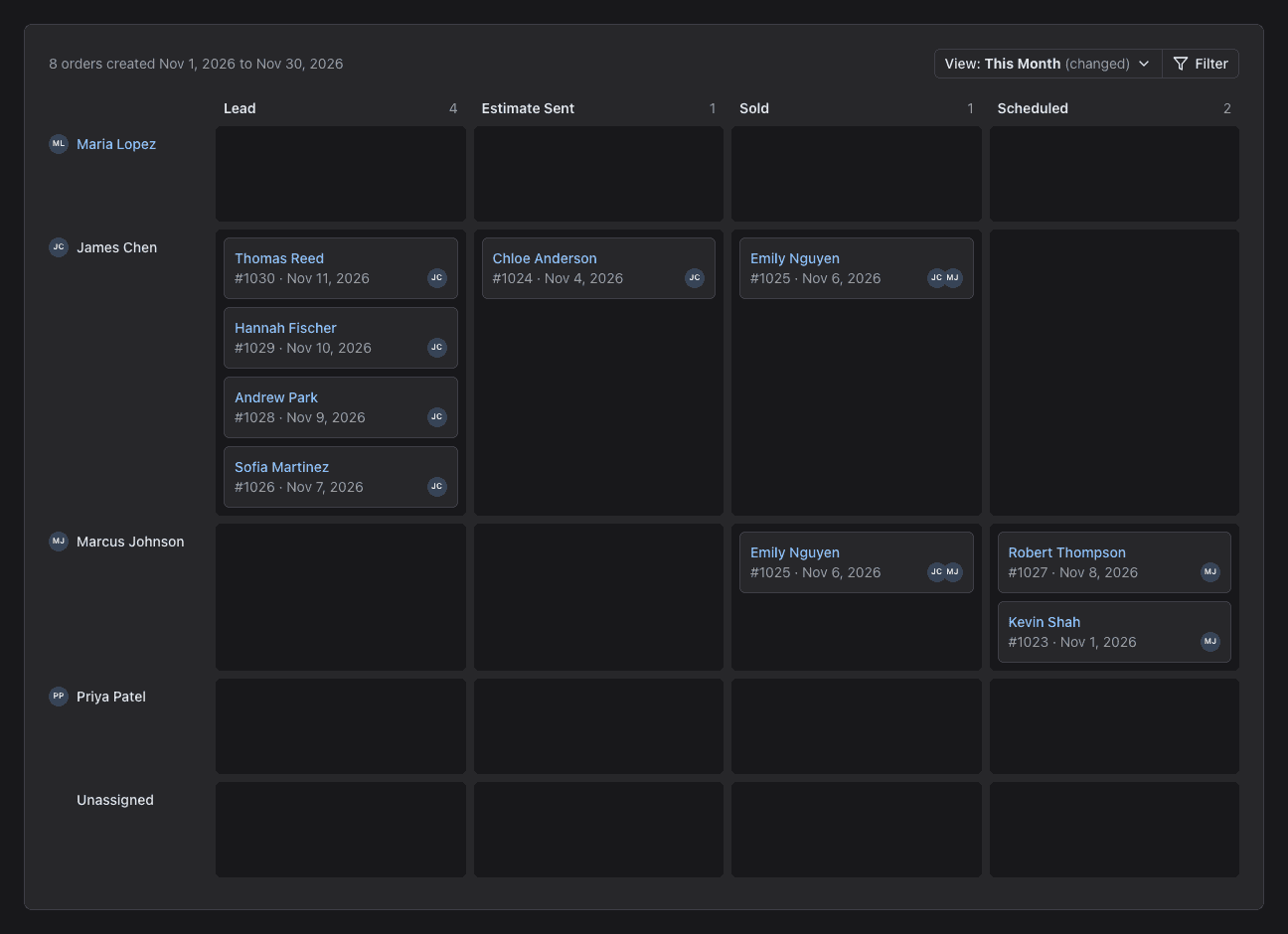
The board now has a row for each user and a last row, Unassigned, for orders with no user. An order with two users shows in both rows.
Drag a card to another column to change the status. Drag a card to another row to change the users of the order. The user of the old row leaves the order and the user of the new row joins it. Click Undo to take the change back. Drag the card to a new row and a new column in one move to change both.
Order User Associations access is required to change the users of an order. Without it, you can still change the status.
Filter the Board
Click Filter to choose what the board shows. The board remembers your last choice and opens with it the next time.
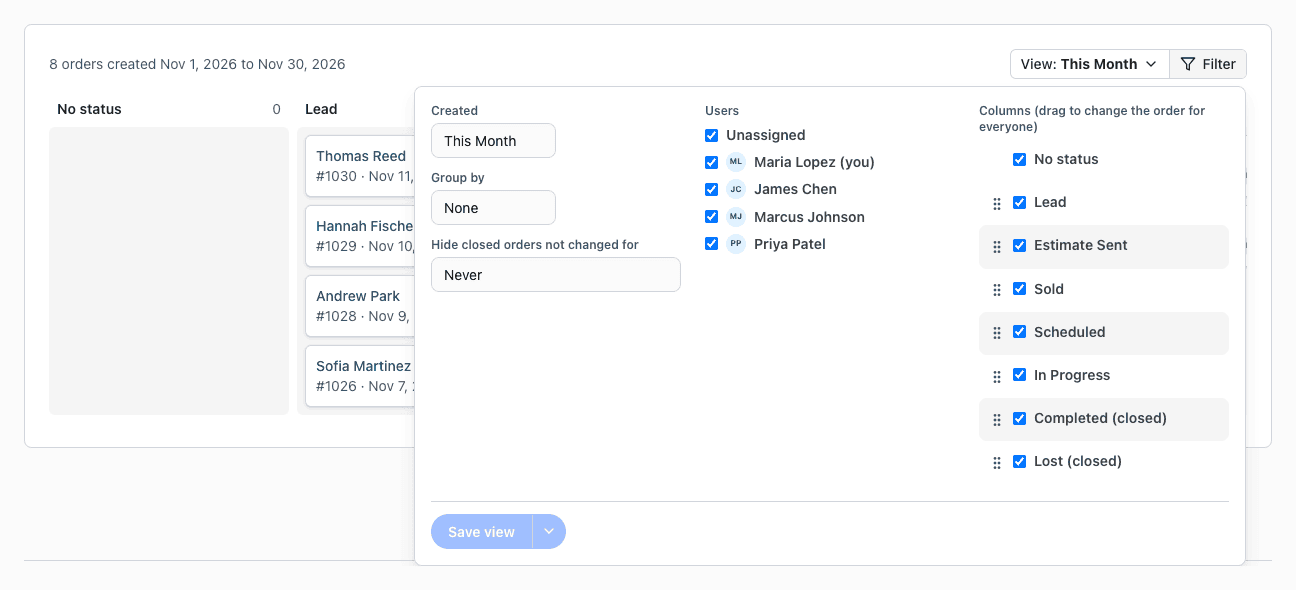
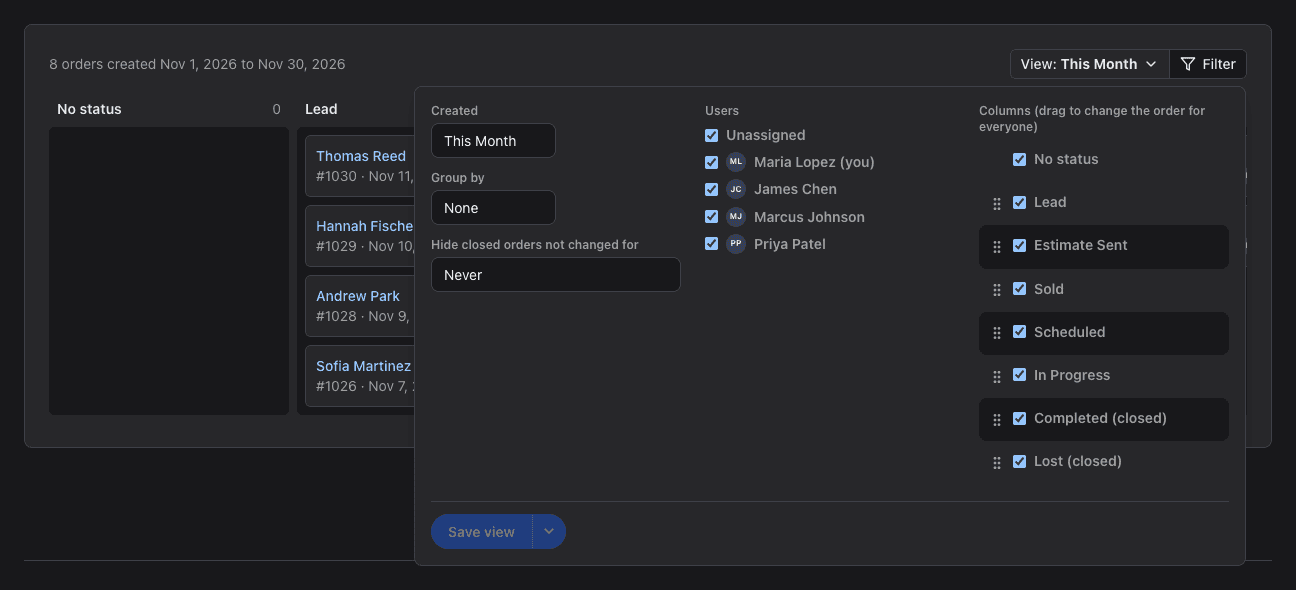
- Created: choose Today, This Week or This Month. Choose Start and end dates to type your own dates.
- Group by: None or User.
- Hide closed orders not changed for: keep old finished orders off the board. Choose 1 week, 2 weeks, 1 month or A date. An order is closed when its status is marked Closed.
- Users: clear a user to hide the orders of that user. Clear Unassigned to hide orders that have no user.
- Columns: clear a status to hide its column.
The board shows up to 1,000 orders. If there are more, the board tells you. Narrow the filter to see the rest.
Change the Order of the Columns
Order Status Management access required.
In the Columns list, drag a status by its handle to a new place. The columns move at once. Everyone in your company sees the new order, because the statuses have one order for the whole company. You can also change the order on the Order Status page.
Save and Use Views
A view is a saved set of filter choices, such as "Leads by User". Use views to go back to a board you use often.
- Click Filter and change the choices.
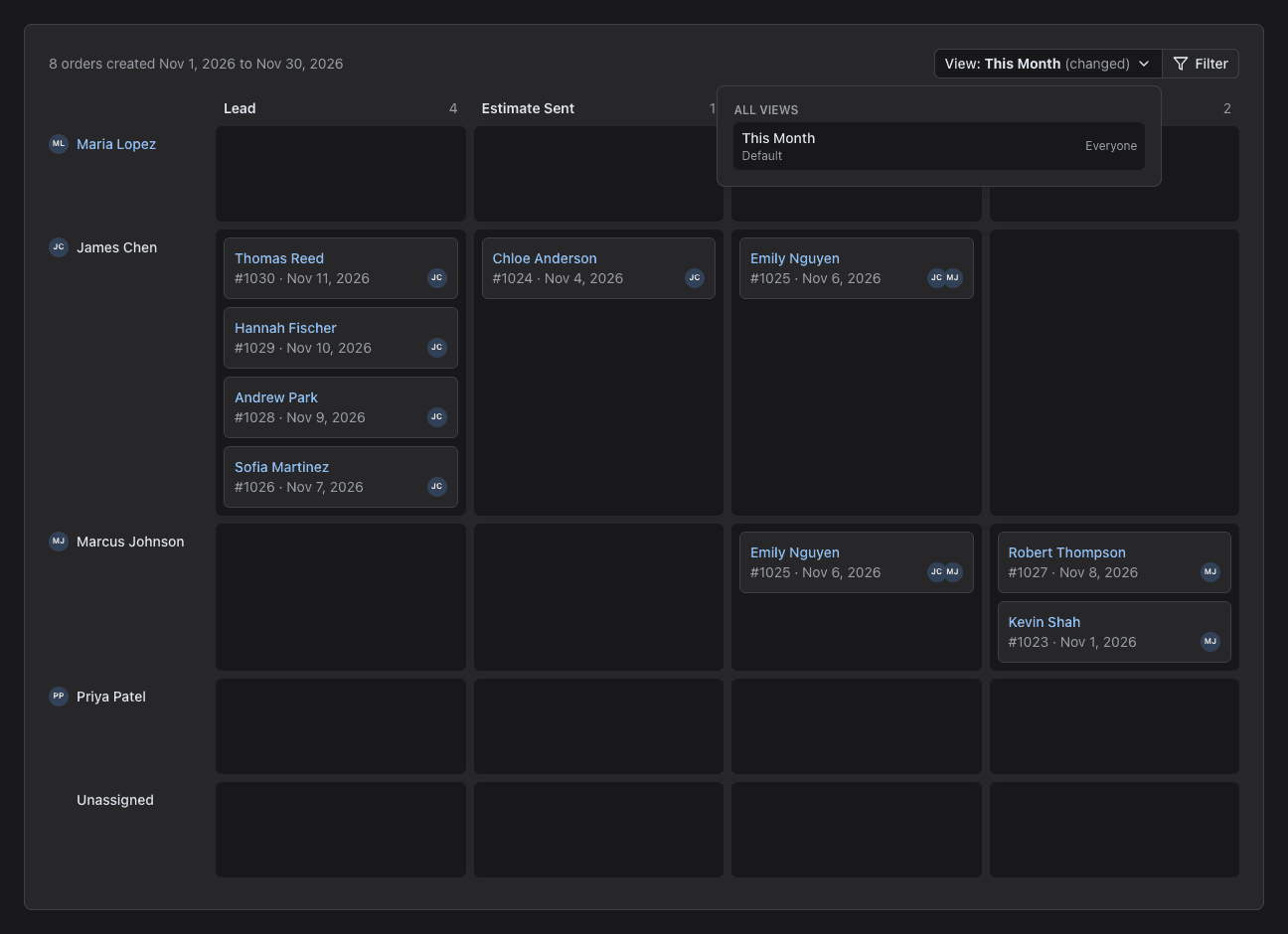
- Click Save view. This button works when the choices differ from the open view. The bar shows (changed) next to the name of the view.
- Type a name and click Save.
- Click the View menu to see all views. Click a view to open it. This Month is the default view.
- Everyone in your company can open your views. Only you can change them.
- To keep the open view and make a copy, click the arrow next to Save view and choose Save as ....
- To delete a view, click the trash icon next to it. You can delete your own views. Administrators can delete any view. Click Undo in the message to bring the view back.
Closed Statuses and Status Order
Admin access required.
- Click your profile icon at the top right and choose Settings.
- Under Orders, click Order Status.
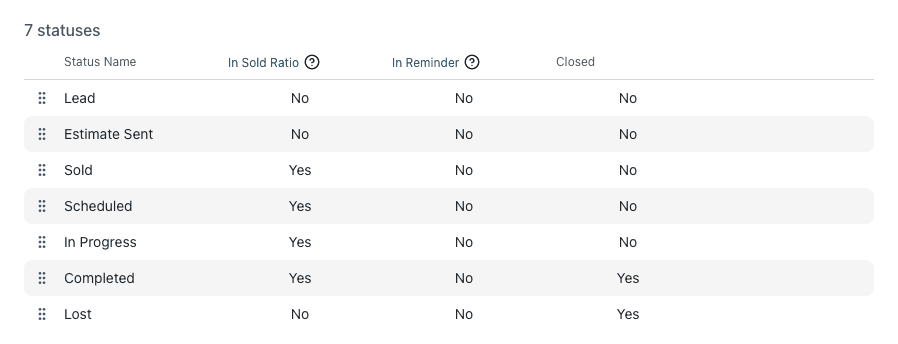
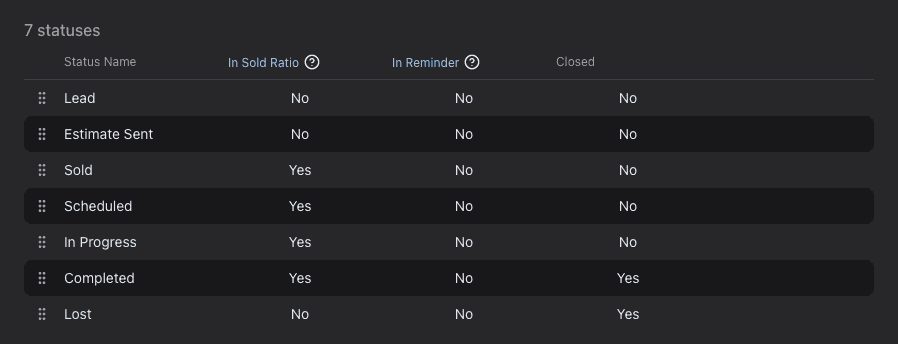
- Drag a status by its handle to change its place. You can also focus the handle and press the up or down arrow key.
- In the Closed column, click Yes or No next to a status to change it.
Mark a status as closed for orders that are done or lost, such as Completed and Lost. The board shows (closed) next to these statuses. Use Hide closed orders not changed for to keep them off the board after some time. The order of the statuses is the same on the board, the order page and the lists.
Tips
- If a card jumps back to its old place after you release it, the change did not save. A message tells you why. Try again.
- If a column is missing, open Filter and check that the status is selected under Columns.
- If an order is missing, check the Created dates and Hide closed orders not changed for. Also check that its users are selected under Users.
- To see the orders of one user only, clear all other users in Users, then save the choices as a view.
- Batch Edit and the Order Status report are no longer on the board. See Order Board and a New Control Panel for what changed.