
Orders now have a board. Each status is a column and each order is a card, so you can see your work at a glance and move an order by dragging it. The Control Panel has a new layout that shows the same board.
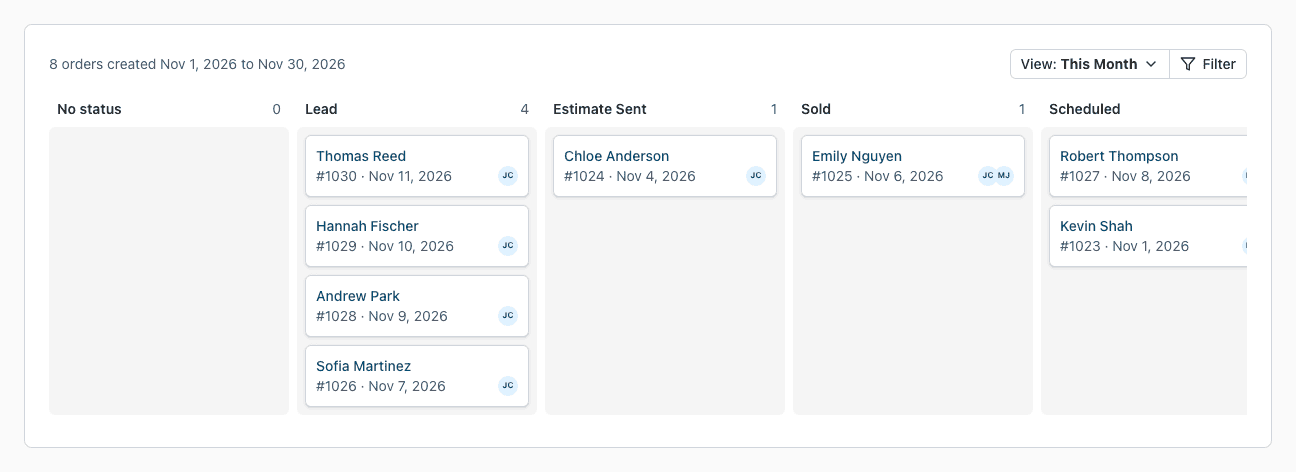
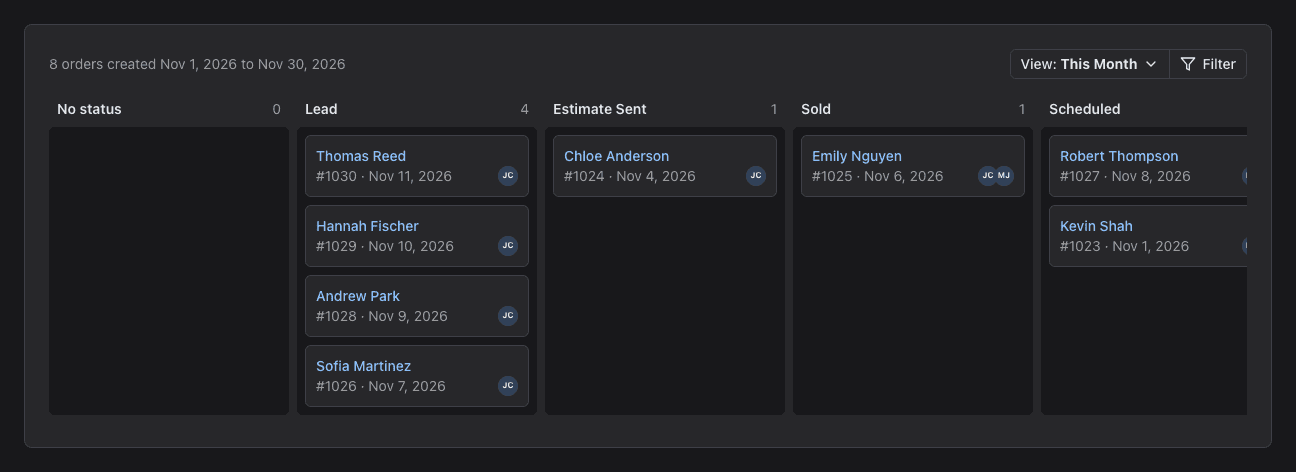
Order Management Board
For the full guide, see Order Management.
- Click Orders in the menu, then Order Management.
- Drag a card to another column to change the status of the order. Click Undo in the message to take the change back.
- Set Group by to User to get a row for each user. Drag a card to another row to change the users of the order.
- Click the name of an order to open it.
Filter and Save Views
Click Filter to choose what the board shows. The board remembers your last choice.
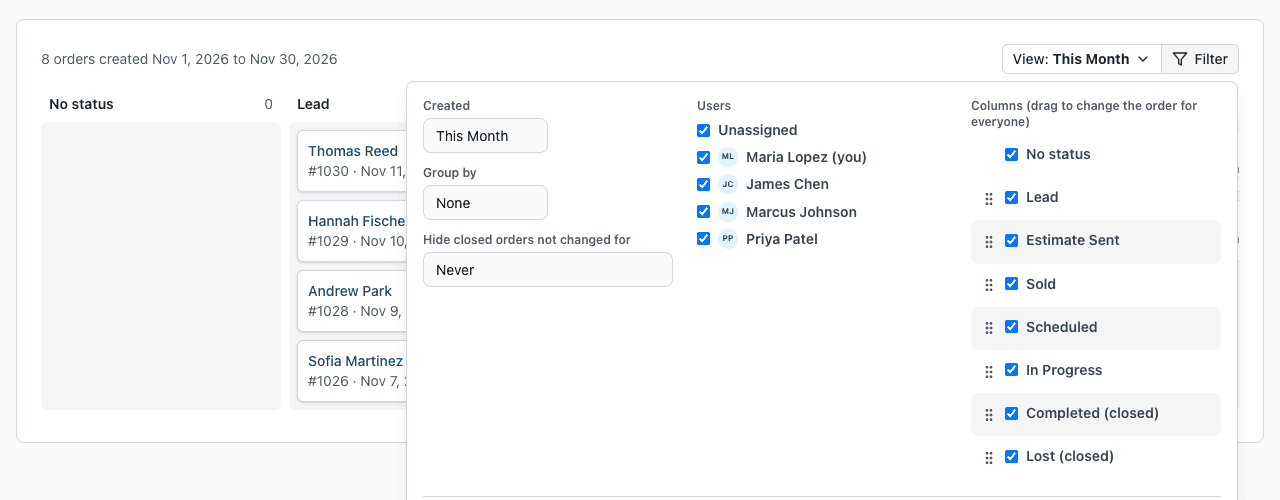
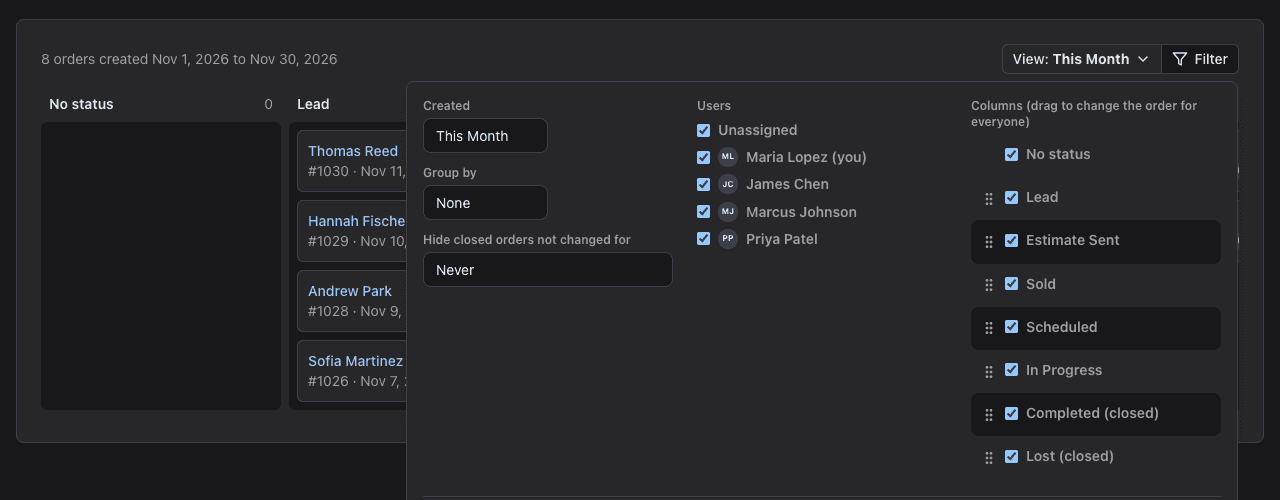
- Created: Today, This Week, This Month or your own start and end dates.
- Users: show the orders of some users only, or the orders with no user.
- Columns: hide a status, or drag a status to a new place. Everyone in your company sees the new order of the statuses.
- Hide closed orders not changed for: keep old closed orders off the board.
To keep a set of choices, click Save view and type a name. Your saved views are in the View menu. Use the arrow next to Save view to save the choices as a new view.
Closed Statuses and Status Order
- On the Order Status page, drag a status by its handle to change the order of the statuses. The board, the order page and the lists use this order.
- Mark a status as Closed for work that is done or lost. Use it with Hide closed orders not changed for.
New Control Panel
The Control Panel has a row with Newest Orders, Upcoming Appointments and your Activity and Notes. The Order Management board is below it, with the same filter and views. Click Open full page to use the board at full size.
Click Add Appointment in Upcoming Appointments to schedule an appointment without leaving the Control Panel. Search for the order by customer name, company or order number, pick it, and fill in the same form as on the order page, with Suggest a time. After you save, the list shows the new appointment.
Removed
- Batch Edit is gone. Use the board to change statuses and users of many orders.
- The Order Status report is gone. The board shows the orders of each status.
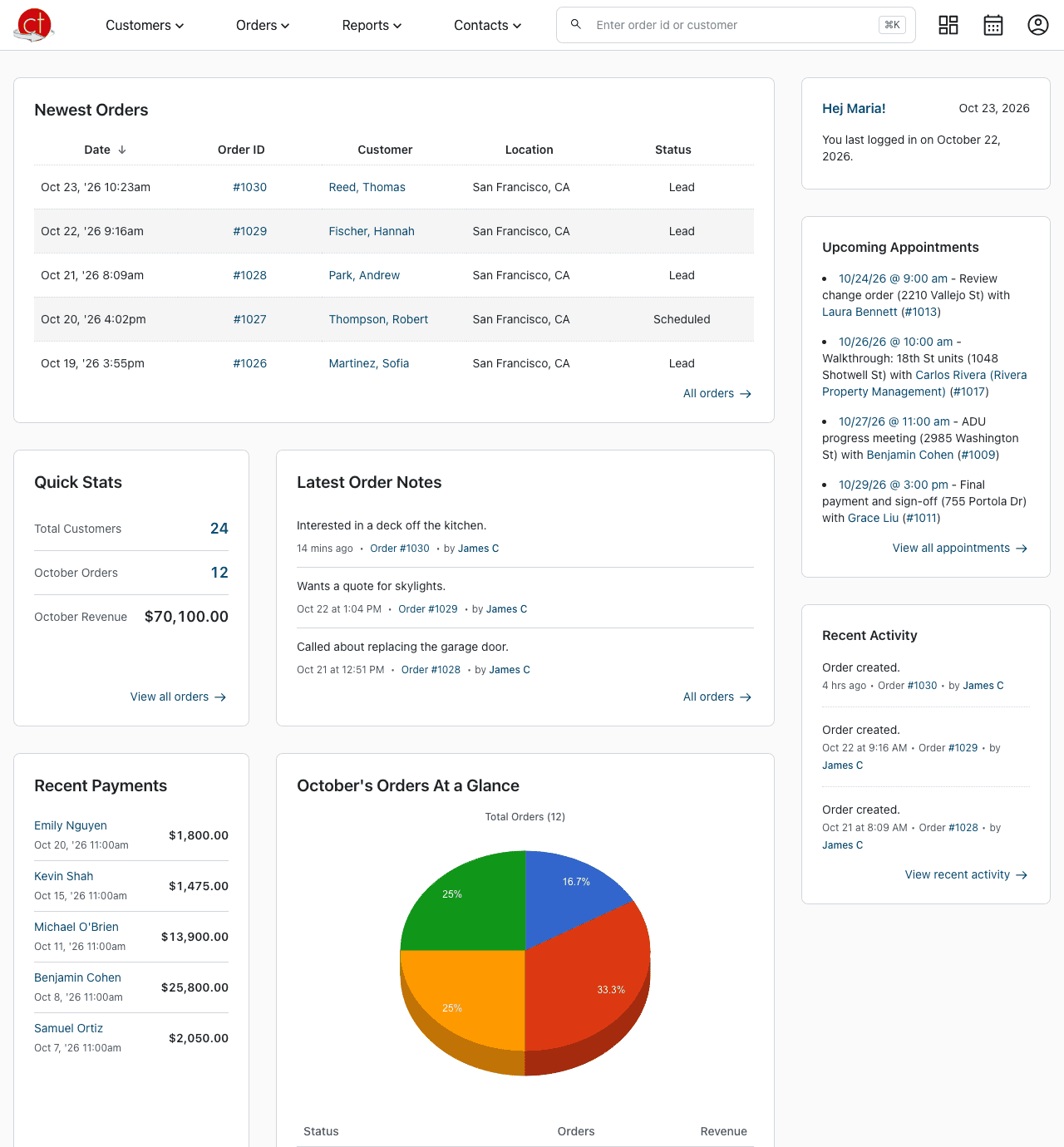
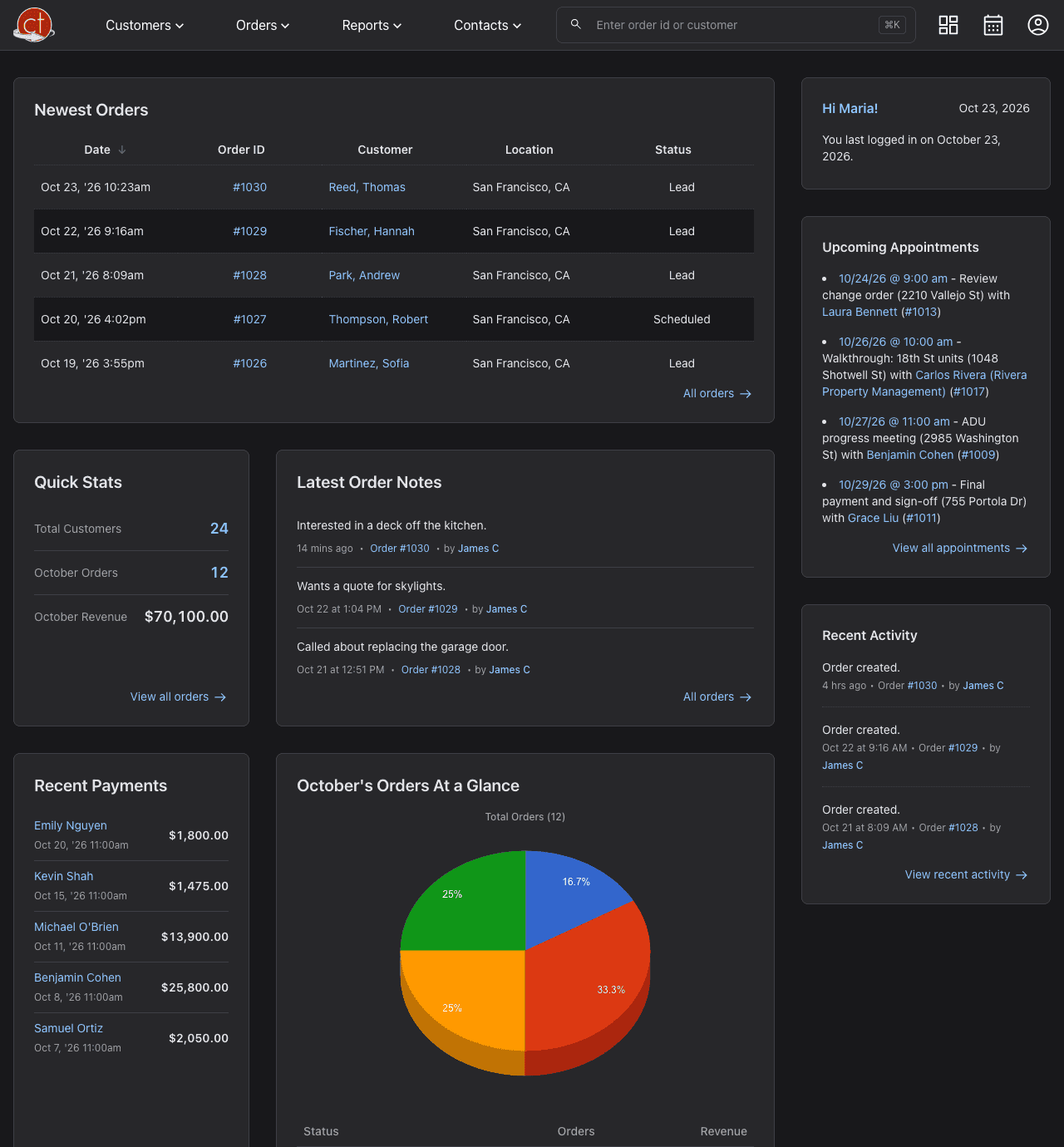
- The Control Panel no longer shows Quick Stats, Recent Payments, Your Order Reminders and Customer Locations. Use Reports > Order Payments and Reports > Customer Maps instead.
Have a question or feedback about these changes? Send us a note.