
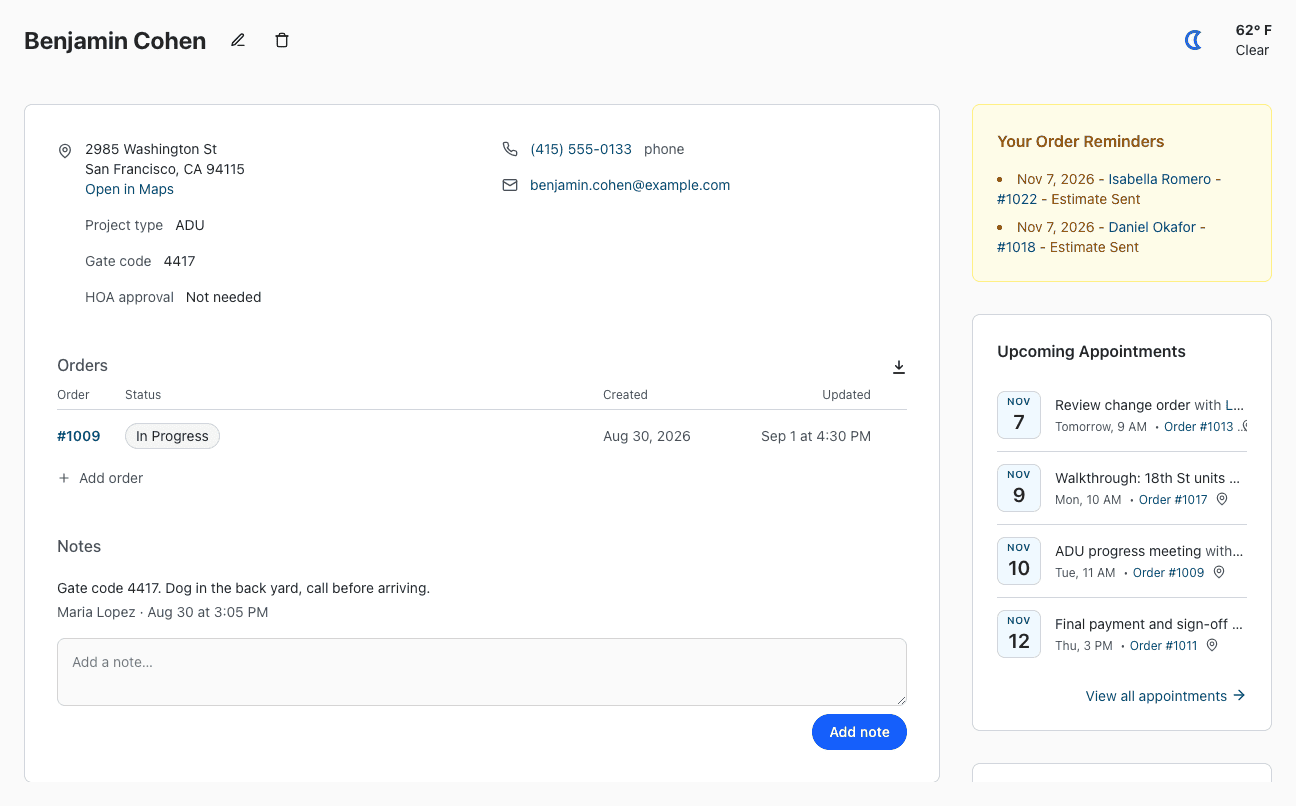
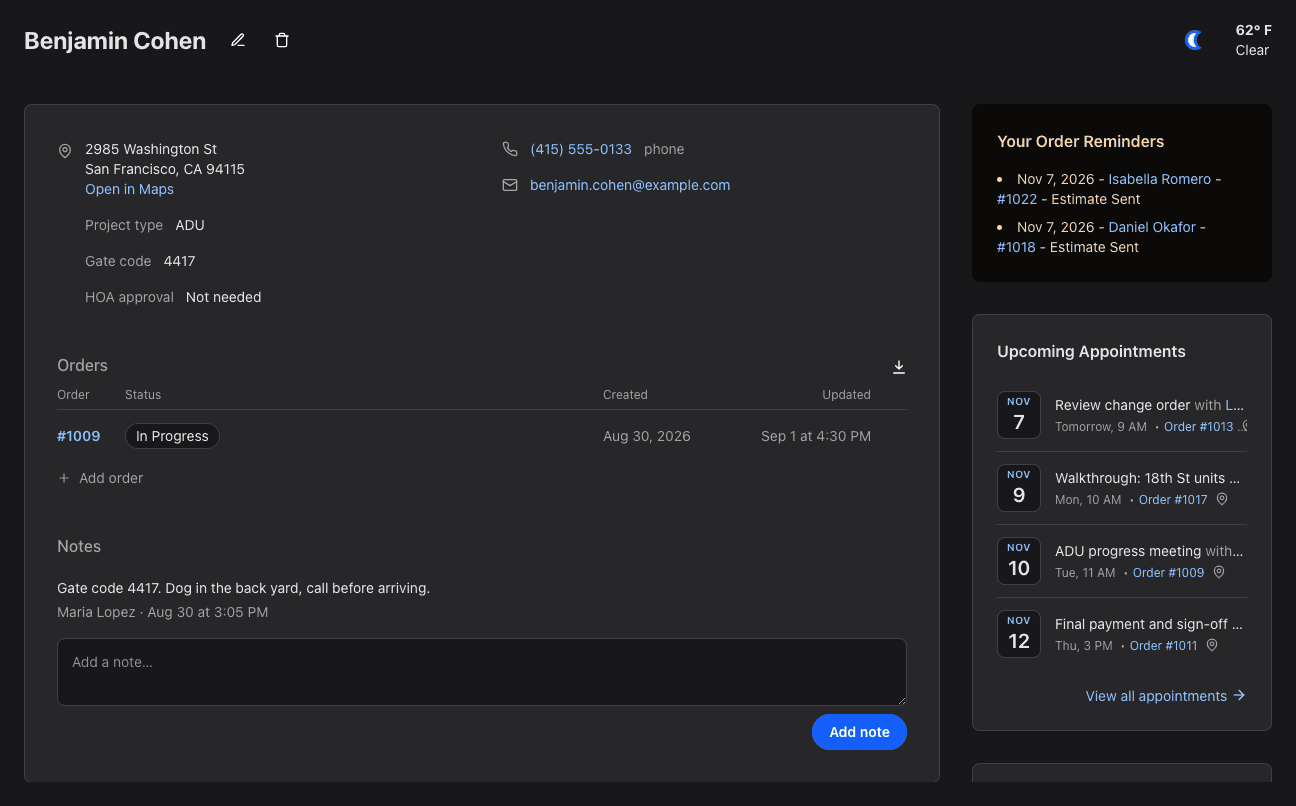
Customer, contact and profile pages now look like the order page: everything about the person in one box, with their details at the top, their orders as a list you can click, and their notes with a box to add a new one right there.
Customer Pages
- Details: the address with an Open in Maps link, contact preferences and custom fields on the left; phone numbers and email on the right. Click a phone number to call it.
- Orders: each order shows its status, when it was added and when it was last changed. Click anywhere on the row to open the order. Add order is under the list, and the download icon next to Orders exports them to Excel.
- Notes: the oldest note is at the top. To add one, type in the Add a note box under the notes and click Add note. Click a note to change it.
The company name now shows under the customer's name at the top of the page.
Contact Pages
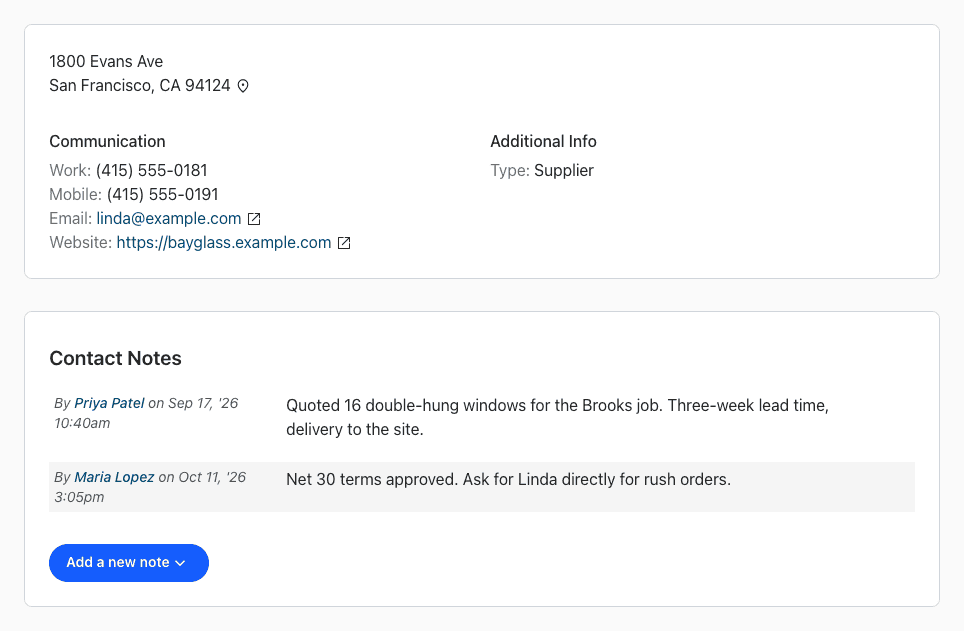
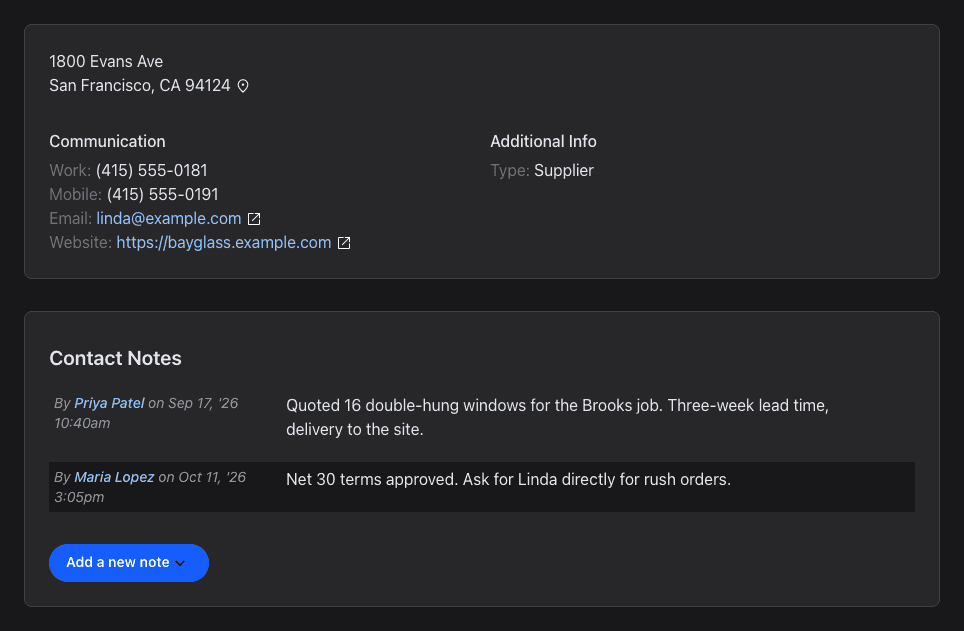
Contact pages use the same layout, without orders: the address and contact type on the left, phone numbers, email and web links on the right, and the notes below.
Profiles
- Profiles lists everyone in your company with their photo or initials, email and phone. Click a row to open the profile.
- A profile shows the person's contact details and the orders they're assigned to.
- On your own profile, Orders by status shows how your orders are spread across statuses as bars. Click a status to list its orders.
Have a question or feedback about these changes? Send us a note.