
Typing an address now suggests the full address as you type, and adding or editing a customer, contact or order opens right on the page you're on, so you never lose your place.
Address Suggestions
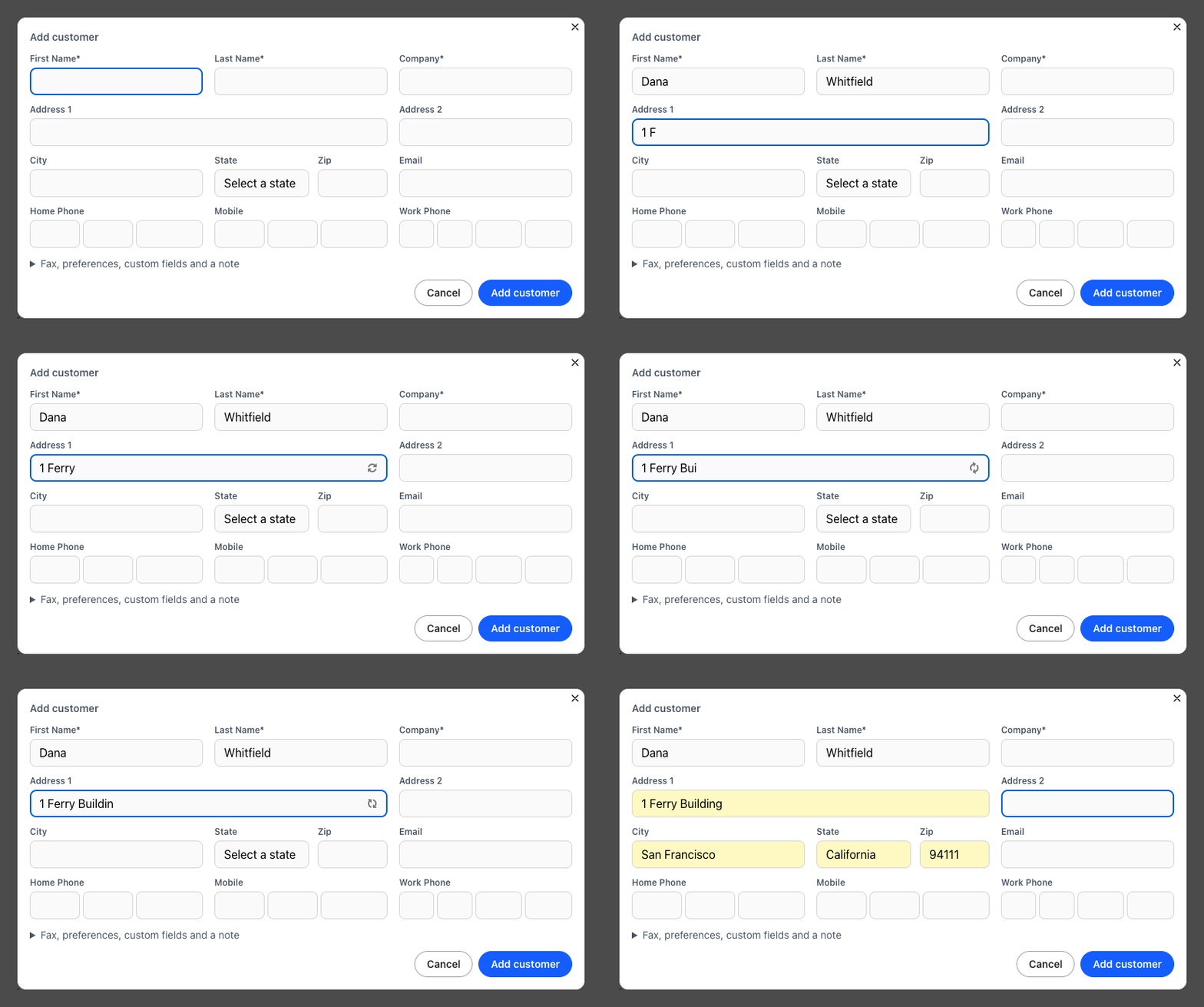
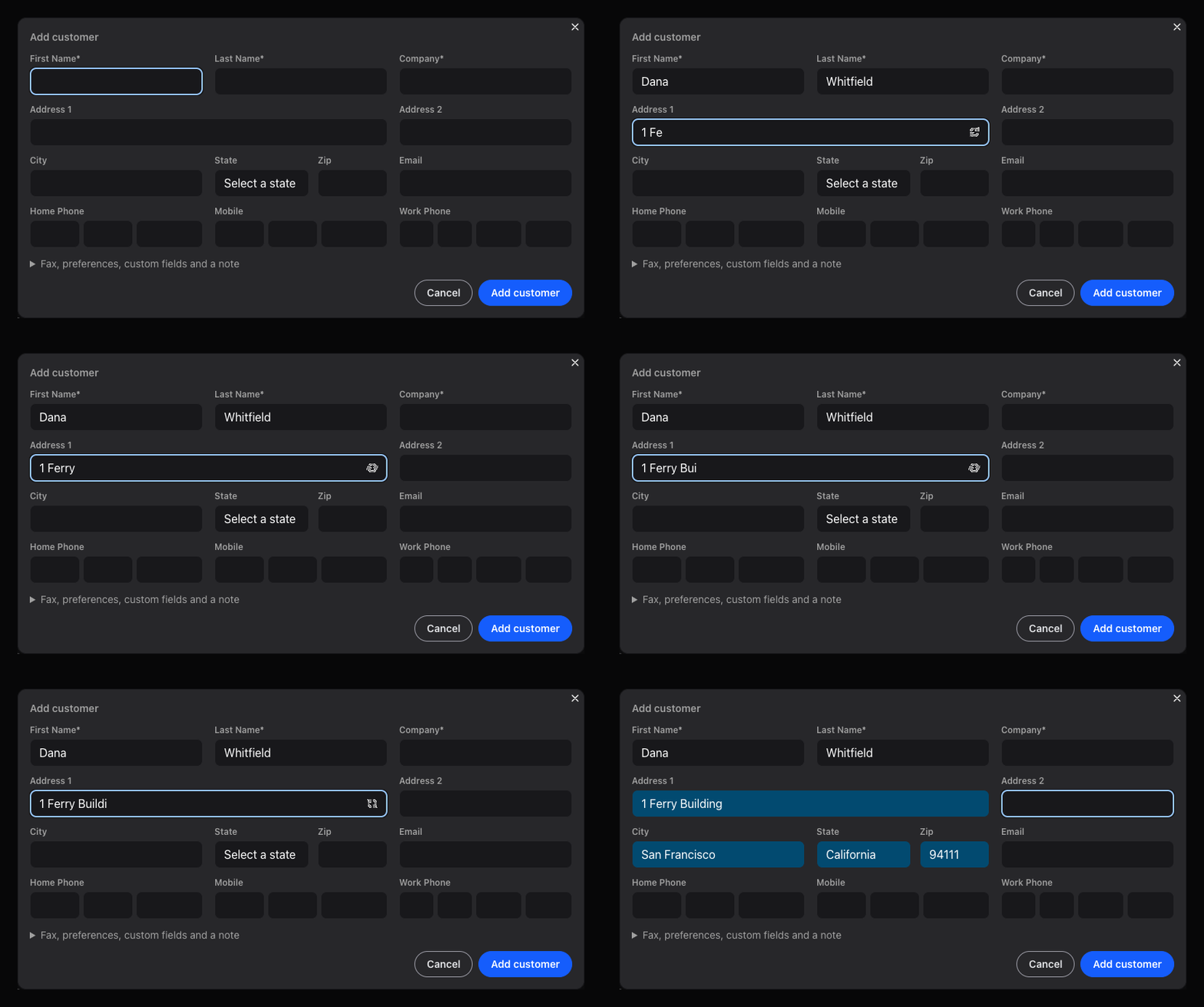
Start typing a street address and pick the right one from the list. The street, city, state and ZIP are filled in for you, with fewer typos.
- Open a form with an address, for example Customers > Add Customer.
- Type the start of the street address in Address 1, such as "1 Ferry Building".
- Click the right address in the list, or choose it with the arrow keys and press Enter.
- The city, state and ZIP are filled in, and you're in Address 2 for a suite or unit number.
Suggestions work in the customer and contact forms, the address form on an order, Settings > Manage Users and Settings > Information. They cover addresses in the United States, and addresses near your company come first when your company's address is filled in under Settings > Information. If yours isn't listed, keep typing: you can always enter the address by hand.
Add and Edit Without Leaving the Page
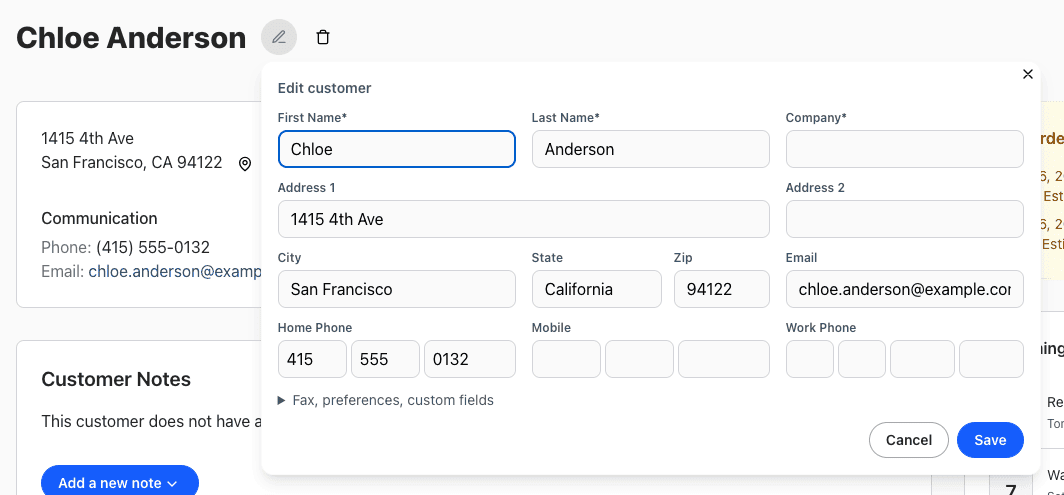
Adding or editing a customer or contact, and adding an order, now open a form over the page you're on instead of a new page.
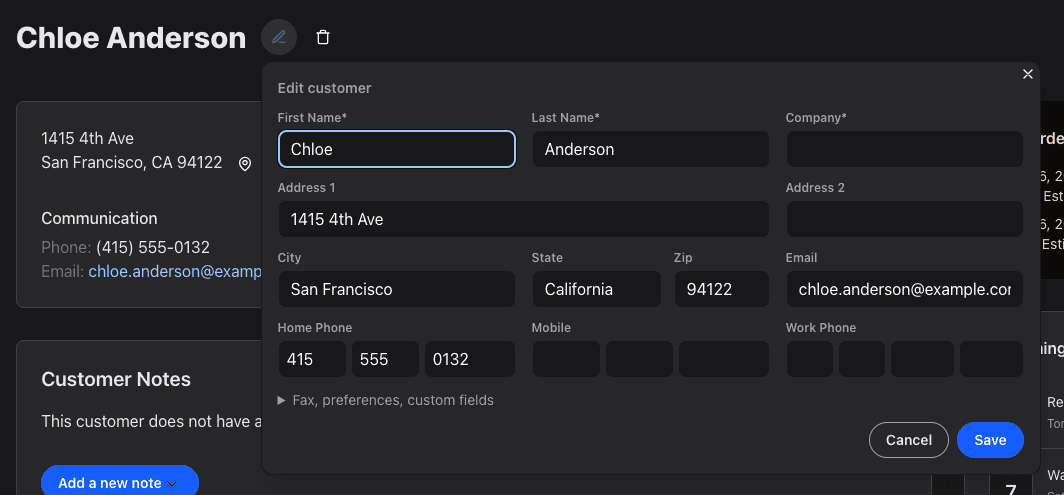
- Edit: click the pencil next to a customer's or contact's name. The form opens right below it. Click Save, and the page shows your changes with an Undo button.
- Add: choose Customers > Add Customer or Contacts > Add Contact. After you save, the new customer or contact opens.
- Cancel: click Cancel, the ×, or press Esc to close the form and stay where you were.
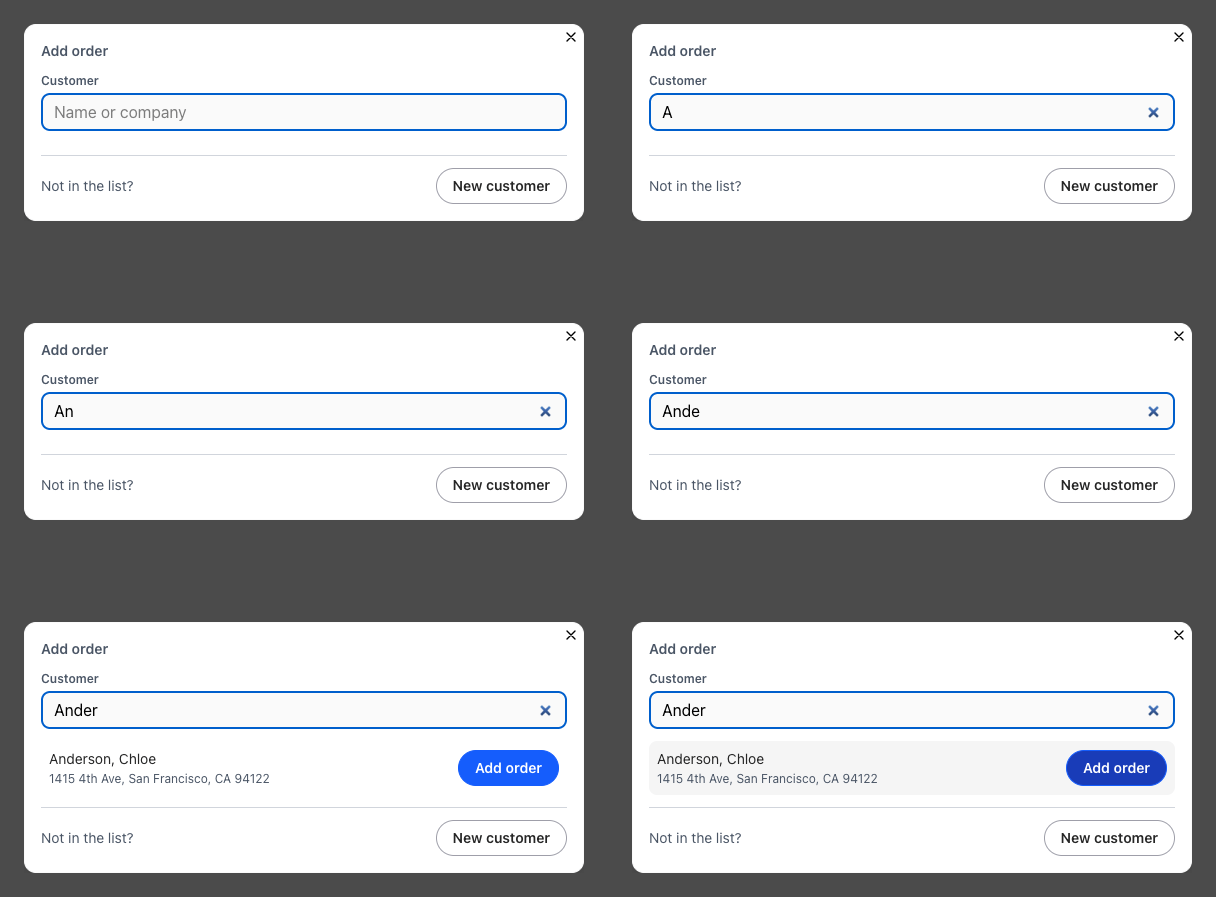
Adding an Order
- Choose Orders > Add Order.
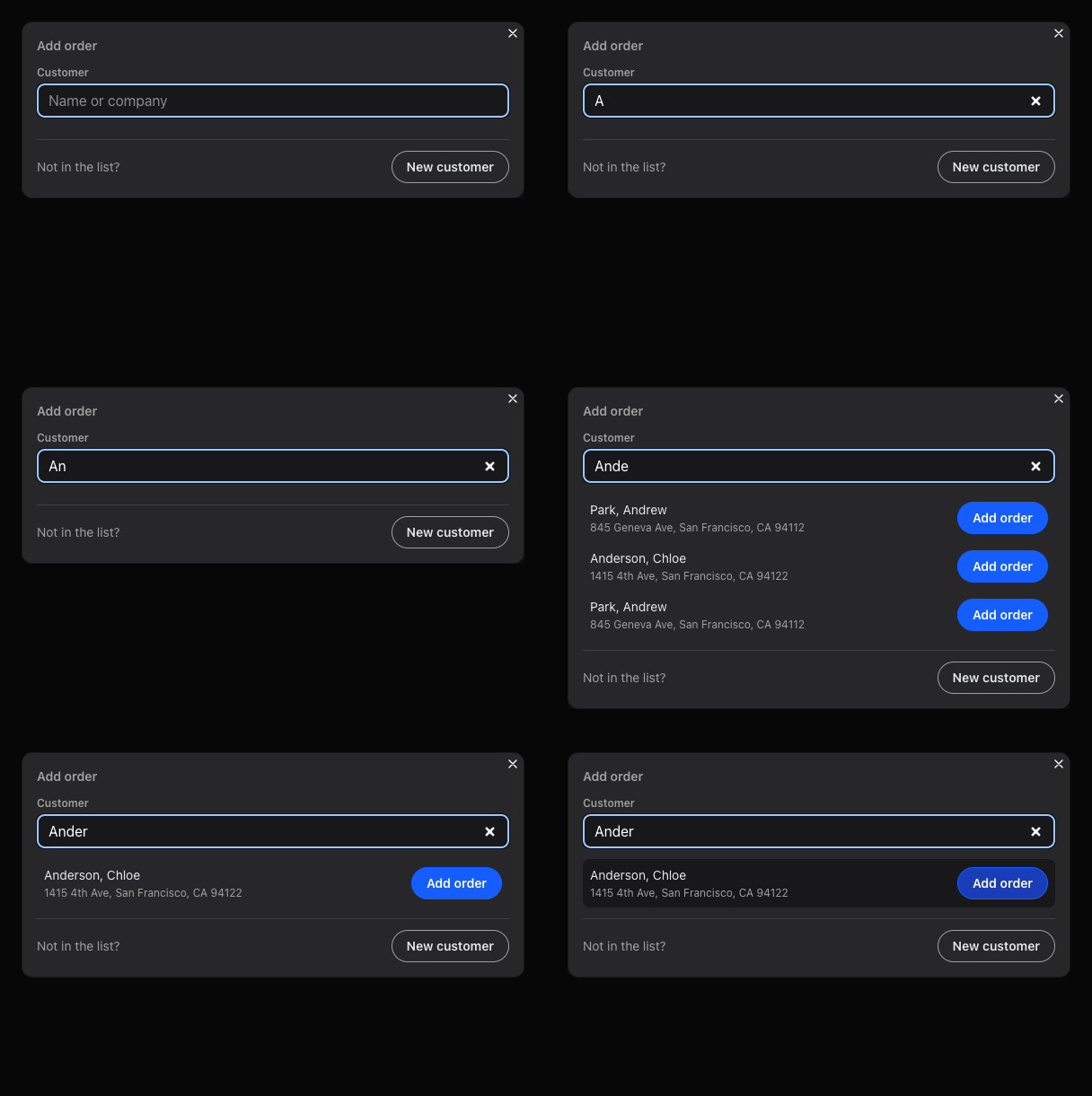
- Type the customer's name or company under Customer.
- Click Add order next to the customer. The new order opens.
- New customer? Click New customer, fill in their details and save. The customer and their first order are added together.
More about orders: What are orders?
Clearer Form Errors
When something in a form needs fixing, every field to fix gets a red border, and the field you're in shows a short tip like "This field is required." Fix it and the border goes away. Your typing stays in the form, so nothing needs to be entered again.
Improved Security
We made more security improvements to keep your company's data private. There is nothing you need to do.
Have a question or feedback about these changes? Send us a note.