
Upload files by dragging them onto an order, print every part of an order at once, and save notes, payments and more without the page reloading.
Drag and Drop Files
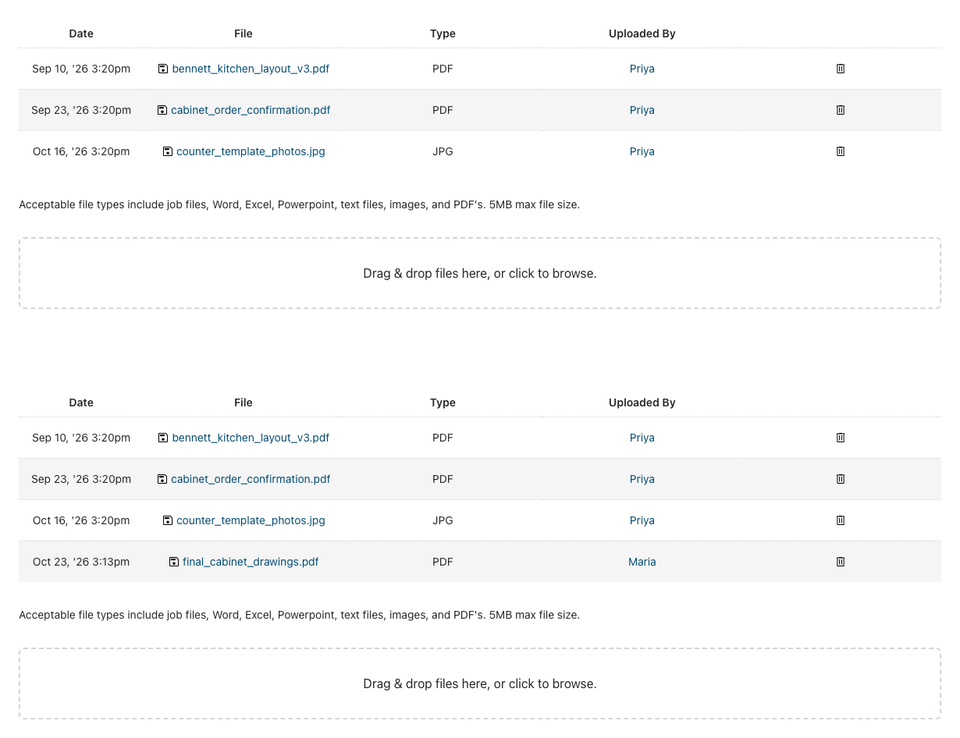
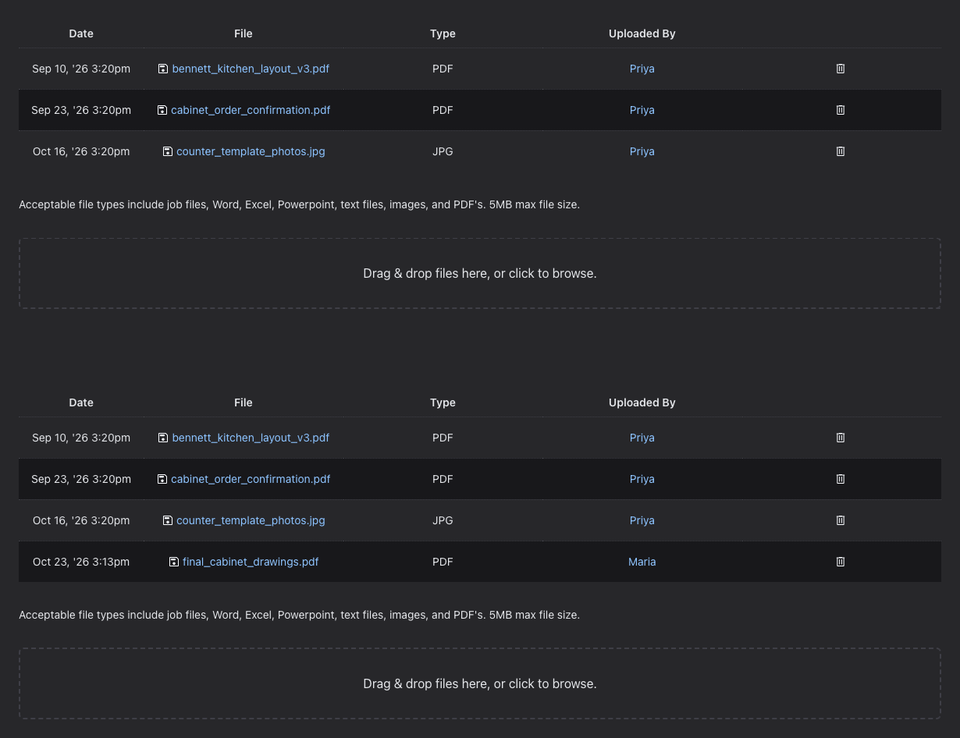
- Open an order and go to the Files tab.
- Drag one or more files onto the box, or click it to choose files.
- The files upload right away and appear in the list.
If a file is too large or of a type we don't accept, you'll see why. A file with the same name as one already on the order gets its own name instead of replacing it. See How do I download order files?
Faster Order Tabs
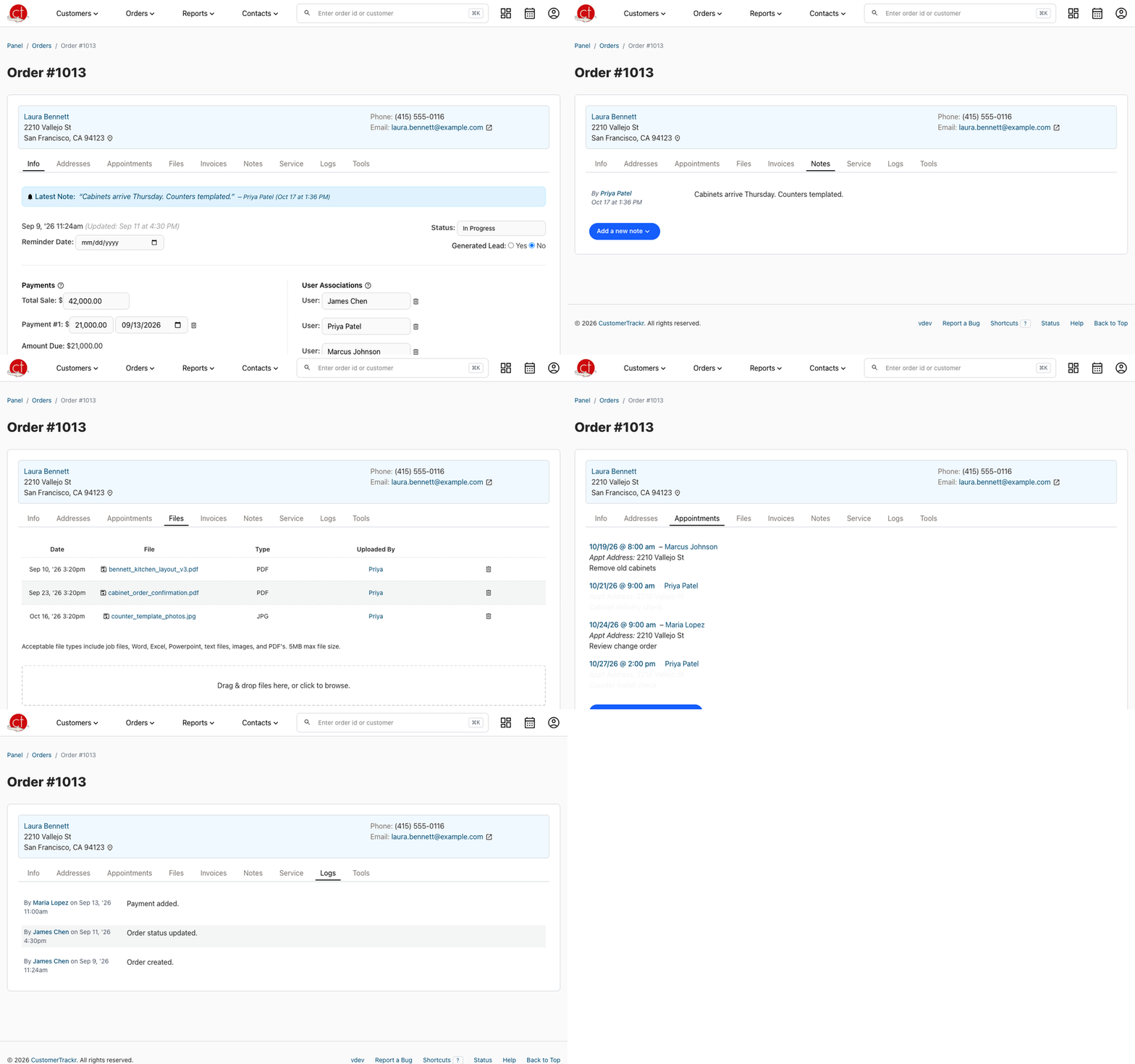
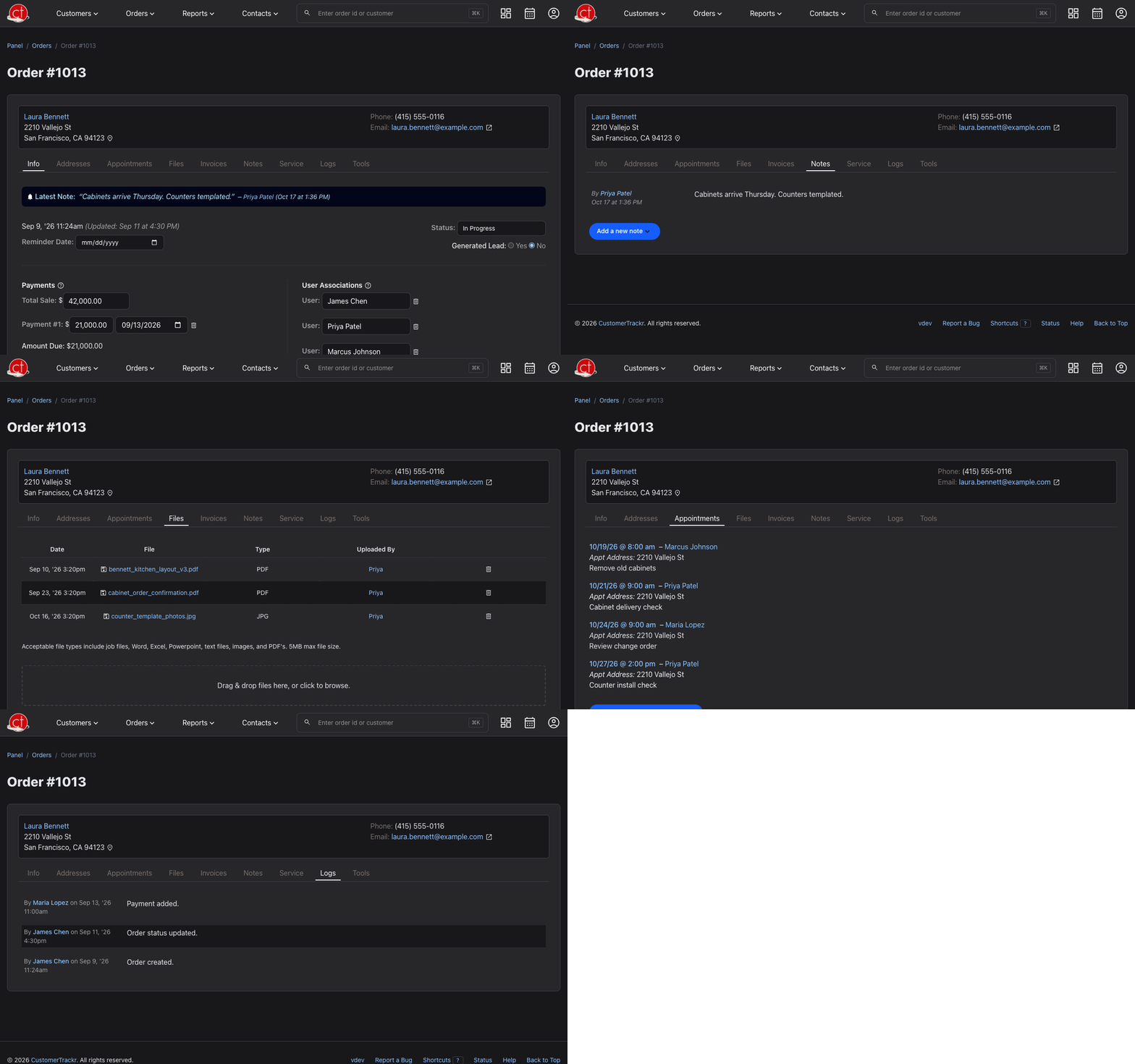
Order tabs open as soon as you click them, and adding a note, payment, address, service call or invoice line saves without reloading the page. If something can't be saved, the form keeps what you typed.
Print the Whole Order
On the Tools tab, Print This Order now includes payments, assigned users, addresses, appointments, invoices, notes, service calls and file names, after the customer and order information.
Fixes
- Editing a field in place keeps characters like &, # and +.
- In a note, Enter starts a new line; press ⌘ Enter (or Ctrl Enter) to save.
- Clearing a reminder works, and changing an assigned user replaces the old one.
- After a "payment is more than the total" message, the amounts you typed stay in the form.
- The address form clears after you save, and its errors show on the page.
- You now see a message if an order can't be deleted.
Have a question or feedback about these changes? Send us a note.