
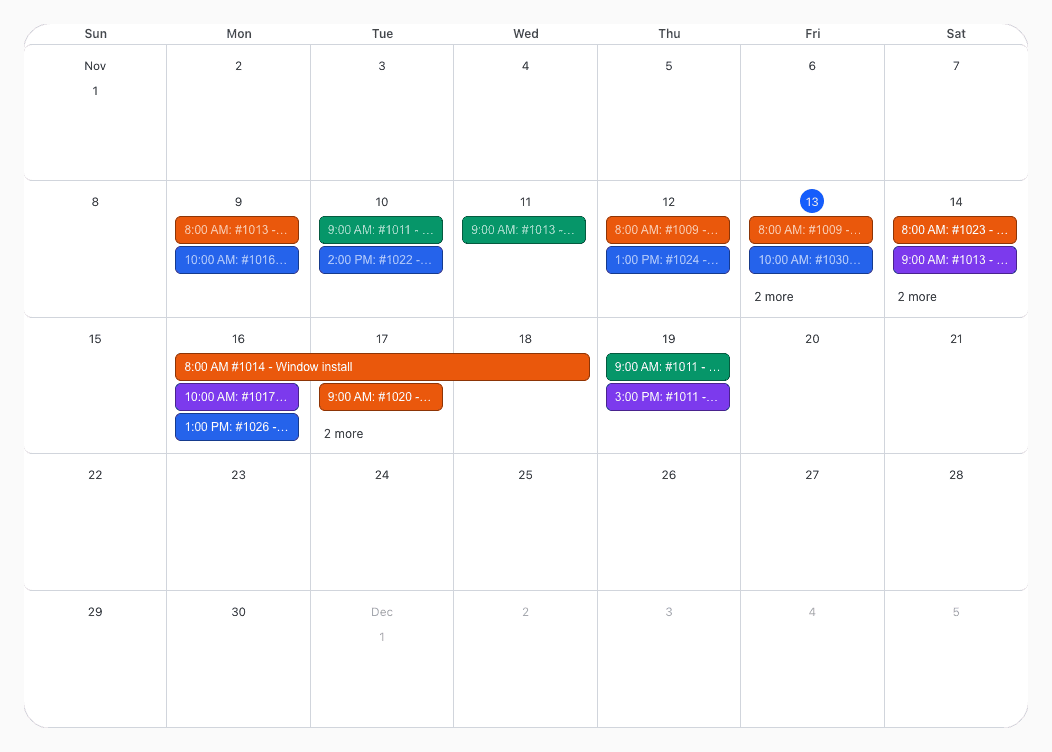
An event in the Scheduler can now cover several days. A job that takes three days is one event, not three, and it shows as one bar across those days in the week and month views.
Schedule an Event Over Several Days
For the full guide, see How Do I Schedule Multiple Days at Once.
- Open the Scheduler with the calendar icon at the top of the page.
- Click Add an Event.
- Set the Start Date and the Start Time of the first day.
- Set the End Date and the End Time of the last day.
- Click Save.
When you change the Start Date of an event, the End Date moves with it, so the event keeps its length.
Where It Shows
- Week and day view: an event of 24 hours or more is a bar in a row above the hours. A pointed end shows that it continues before or after the days on the screen.
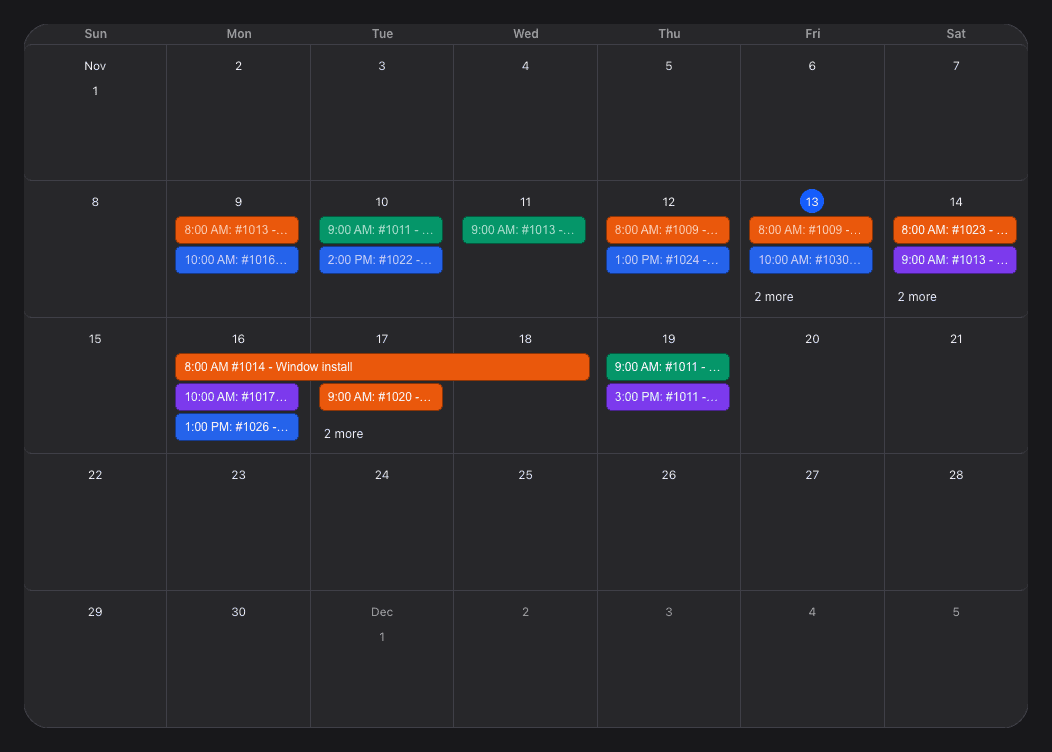
- Month view: the bar goes across the days of the event.
- Overnight events: an event that ends after midnight, but is shorter than 24 hours, shows in the hours of both days in the week and day views.
- Printer view: the event is listed on each of its days, with "day 2 of 3".
- Order and Control Panel: the order's Appointments and Upcoming Appointments show the first and the last day.


Move an Event of Several Days
Drag the bar to another day. The event keeps its length. Press Esc while you drag to stop, or click Undo in the message after you drop it. To change when the event ends, open it and change the End Date or the End Time.
Fixes
- An event that started before the days on the screen, or that ended after midnight, no longer goes missing from the Scheduler.
Have a question or feedback about these changes? Send us a note.