
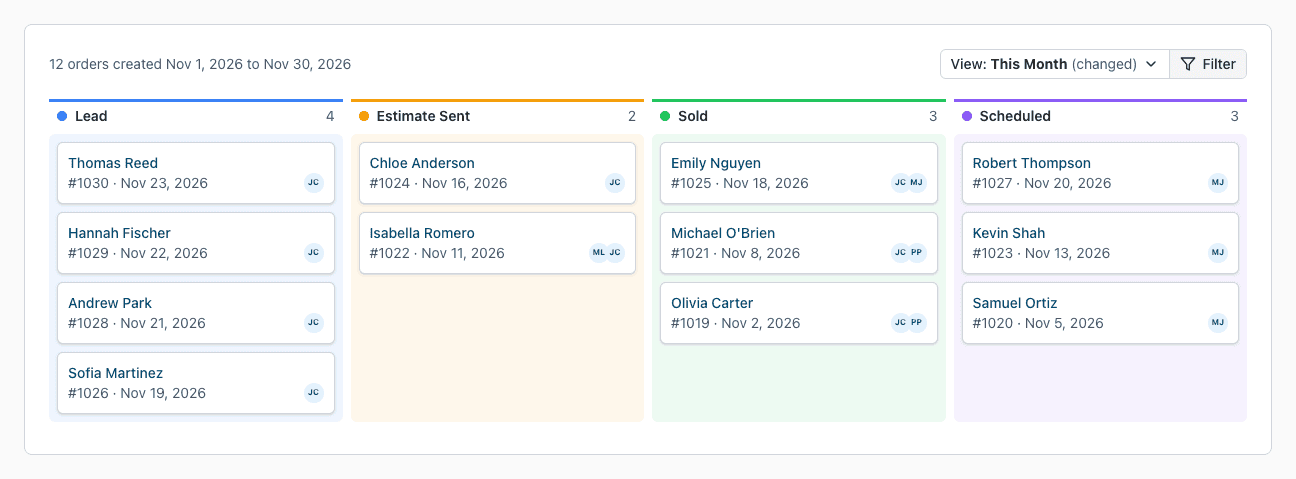
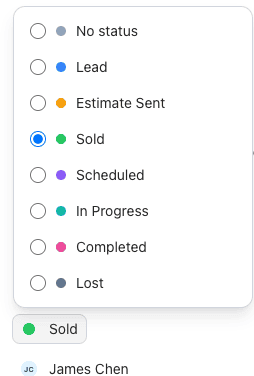
Each order status now has its own color. The color shows on the Order Management board, on the order page, in order lists, on Customer Maps and in the Sales Stats report, so you can see the status of your work at a glance.
Pick a Color for a Status
A new status gets the next color that no other status uses. Your existing statuses have colors already. You can change any of them in two places. For more, see Order Management.
On the Order Status page:
- Click your profile icon at the top right and choose Settings.
- Under Orders, click Order Status.
- Click the colored dot in the Color column next to a status.
- Click a color, or type your own color in Custom hex and press Enter.
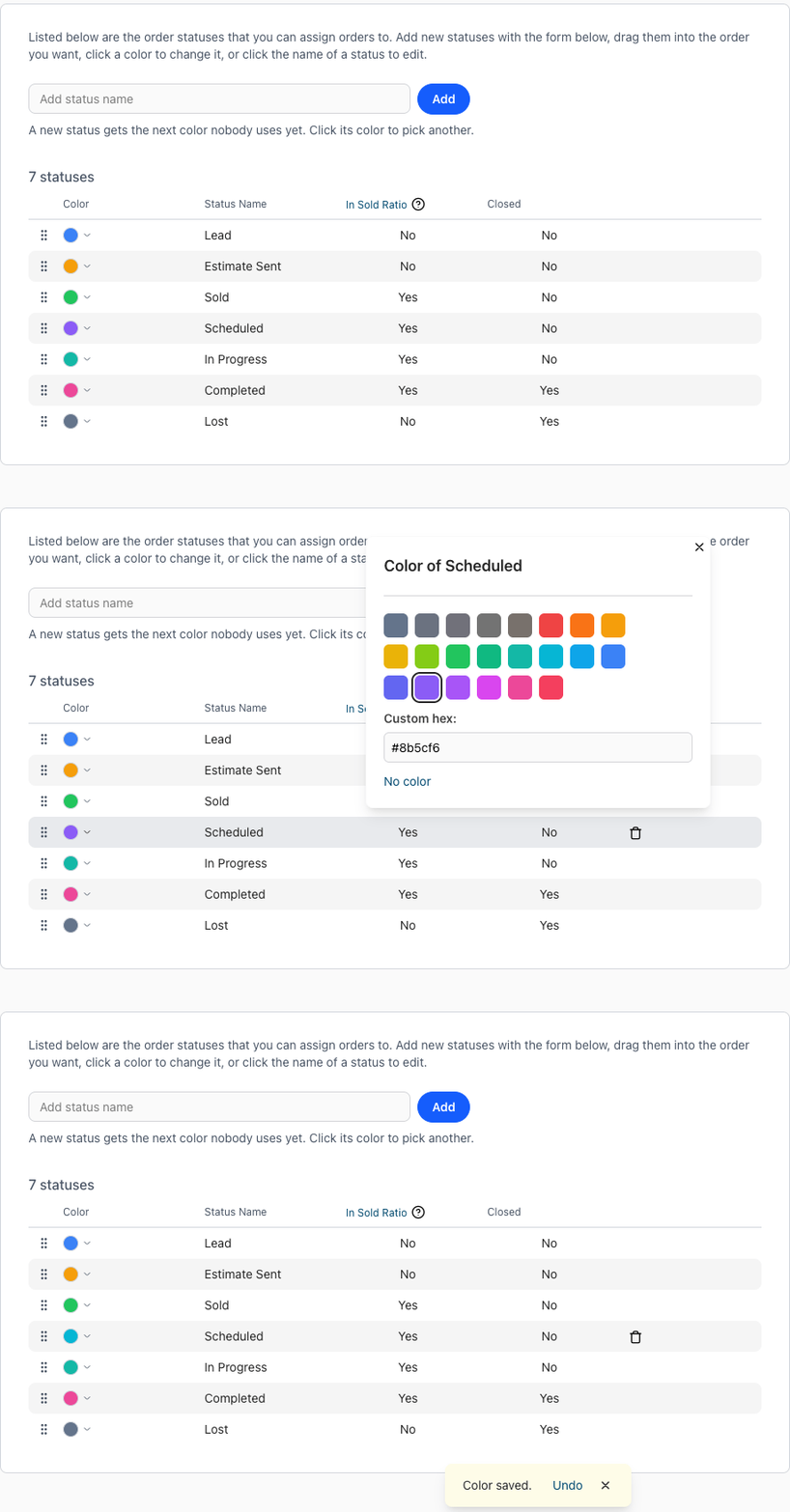
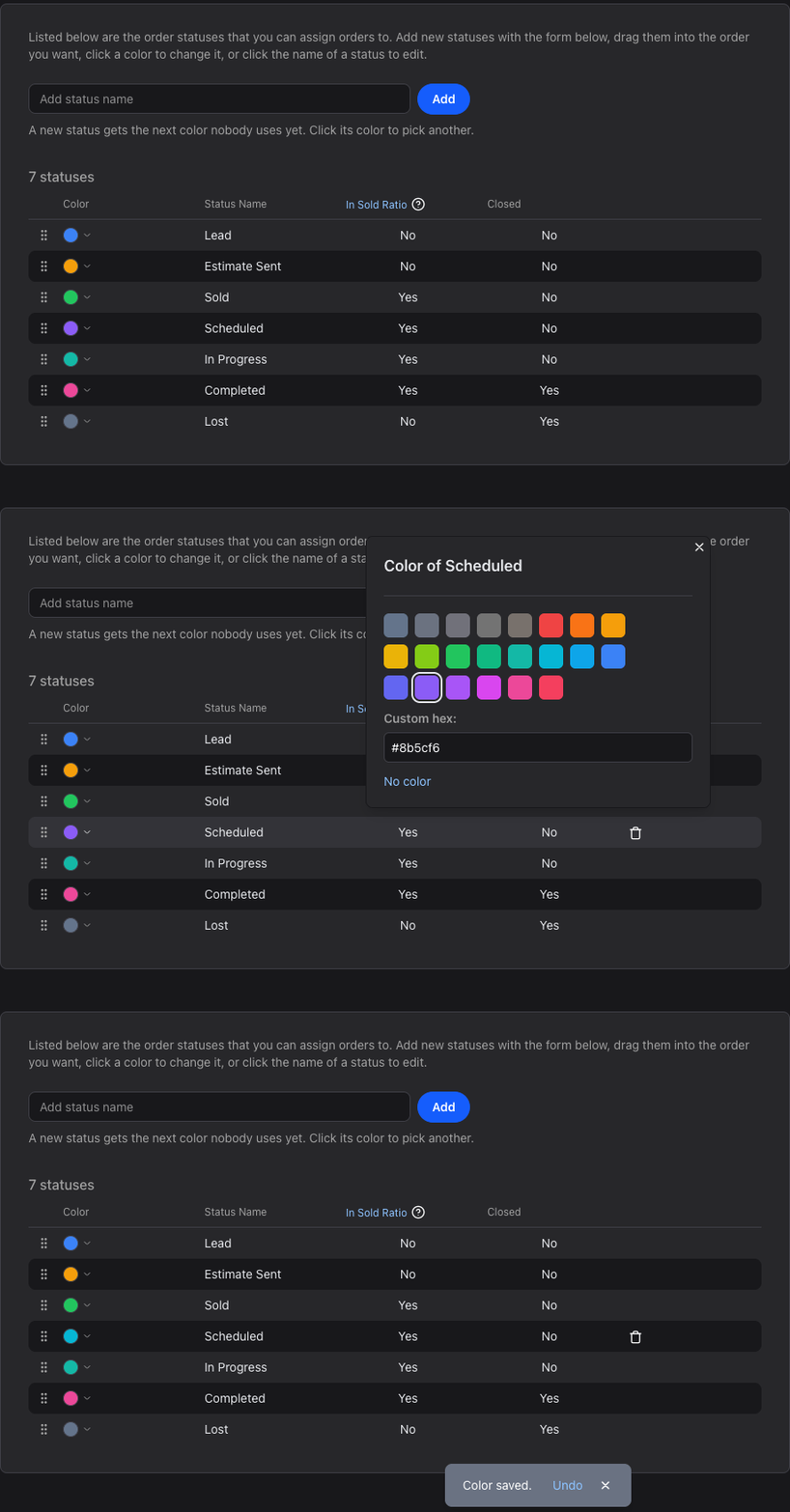
The color saves at once. Click Undo in the message to take the change back.
On the Order Management board:
- Click Filter.
- In the Columns list, click the colored dot next to a status.
- Click a color.
The No status column is always gray. Statuses that we share with all companies keep their color.
Where You See the Colors
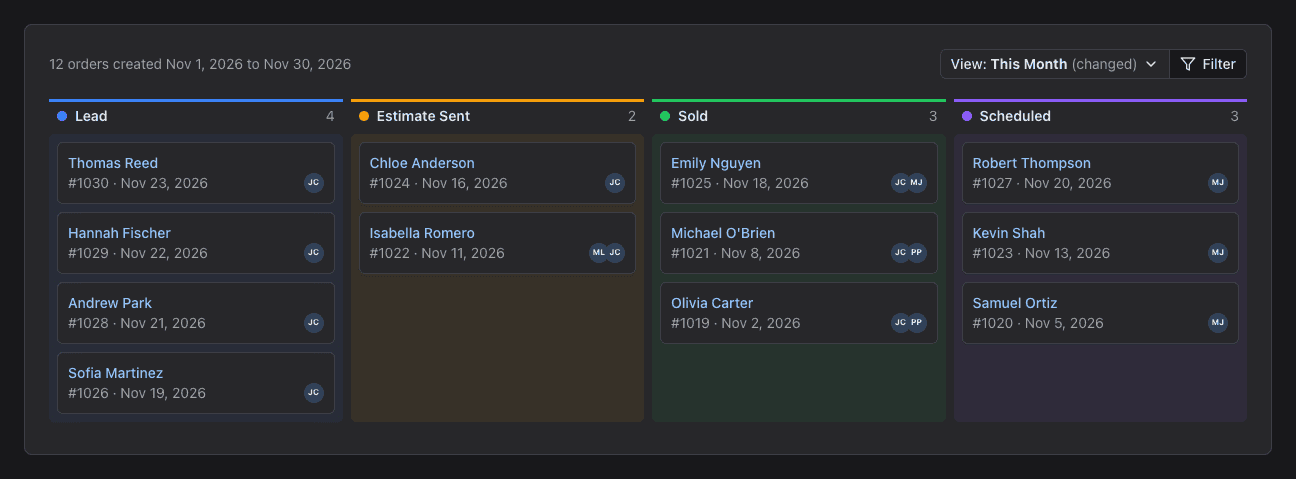
- Order Management board: a colored line at the top of each column, a dot, and a tinted area behind the cards.
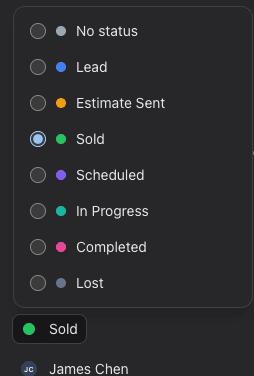
- Order page: a dot next to the status in Properties, and a dot next to each status in the status menu.
- Order lists: the order list, and the order lists on customer and profile pages, show the status as a colored label with a dot.
- Reports and search: the Generated Leads report and the search results use the same colored label.
- Control Panel: Newest Orders shows a dot next to the status name.
- Customer Maps: the pins on the map take the color of the order status.
- Sales Stats: the pie chart and the list of statuses use the status colors.
Also New
- On Customer Maps, rest the pointer on a row in the list to highlight its pin. The map moves to the pin when the pin is out of view.
Have a question or feedback about these changes? Send us a note.